
Why this matters #
Accurate event tracking is essential for optimizing your ad performance and understanding customer behavior. By integrating your Meta Pixel ID with Wishlist Guru, you can track two high-value actions: when shoppers add items to their cart and when they add items to their wishlist. These signals help improve retargeting accuracy, boost campaign efficiency, and provide richer behavioral insights.
💡 Plan Availability #
- Pro Plan: This feature is available on the Pro plan.
How to Enable Meta Pixel Integration in Wishlist Guru #
Step 1: Go to General Settings #
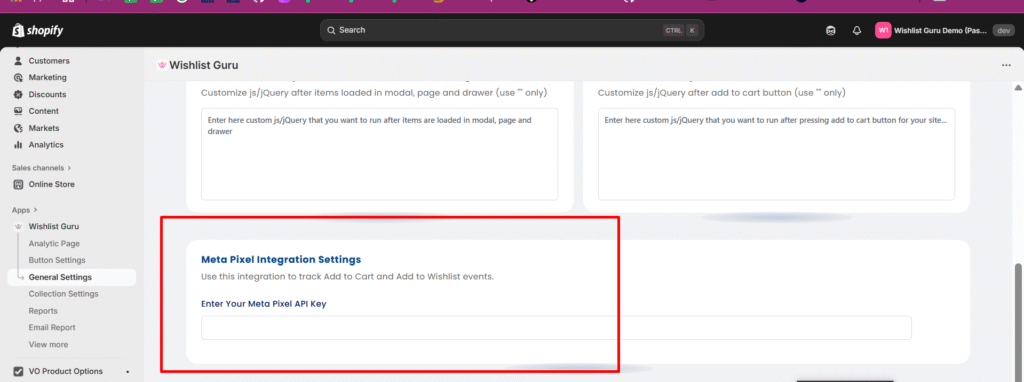
Open your Wishlist Guru app in Shopify and navigate to:
General Settings → Custom CSS/JS Code → Meta Pixel Integration
Step 2: Enter Your Meta Pixel API Key #
Paste your Meta Pixel ID into the Meta Pixel Integration field.
Step 3: Save Your Settings #
Once saved, Wishlist Guru will automatically start firing two custom pixel events:
- WG-addToCart – triggers when a customer adds an item to cart
- WG-addToWishlist – triggers when a customer adds an item to their wishlist
Step 4: Test Your Events #
Use the Meta Pixel Helper browser extension to verify that both events are firing correctly on your storefront.
Example: What the Events Look Like in Meta Pixel Helper #
When testing with the Meta Pixel Helper, you will see events such as:
- WG-addToCart – triggered the moment a user clicks add to cart
- WG-addToWishlist – triggered when a user adds an item to their wishlist
These events will appear under your active pixel with their respective payloads.


