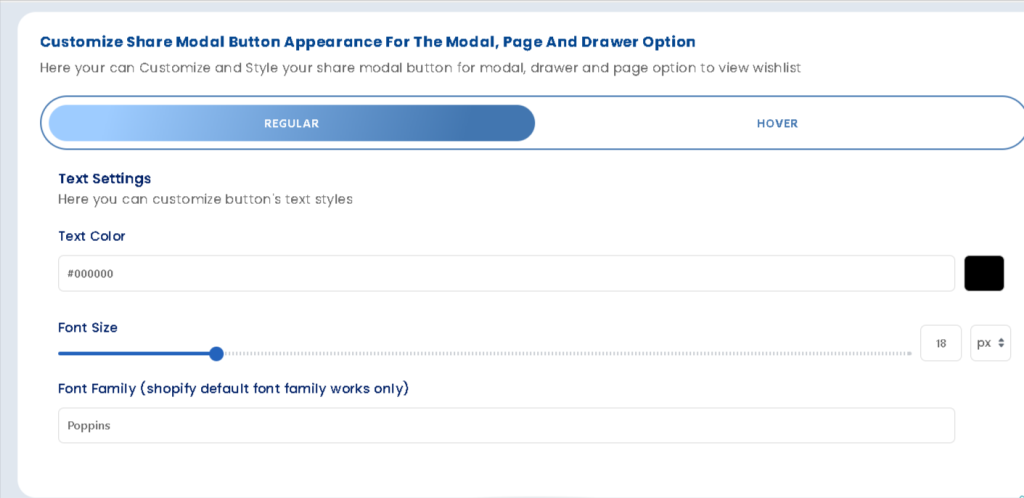
To help you match your store’s design and improve the overall user experience, Wishlist Guru lets you customize the “Move to Cart” button on the wishlist page. You can easily adjust colors, fonts, and hover effects to ensure the button looks and feels consistent with your brand.
How to Show Wishlist on Any Page Using Wishlist Guru #
- Go to General Settings
- Click on Wishlist Page Display Settings
- Scroll below to Styles for the Move to Cart button
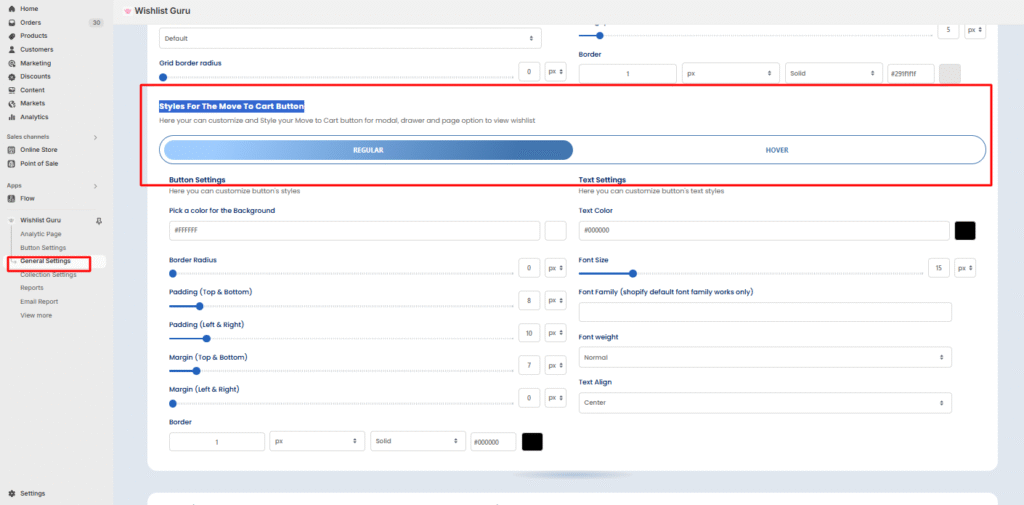
Styles for the Move to Cart Button #
The “Style Box” for the “Move to Cart” button allows you to customize various visual aspects of the button. The options available include two states: Regular and Hover.
- Regular State: This is the appearance of the button when it’s in its normal, idle state.
- Hover State: This is the appearance of the button when the user hovers over it with the cursor.
Customization Steps: #
- Select the Regular or Hover state from the available options.
- Adjust the visual aspects, such as color, size, font, background, and border.
- Preview the changes in real-time if the preview option is available.
Note: Don’t forget to click the Save button (located at the top right corner of your screen) after making changes to the “Move to Cart” button styles.
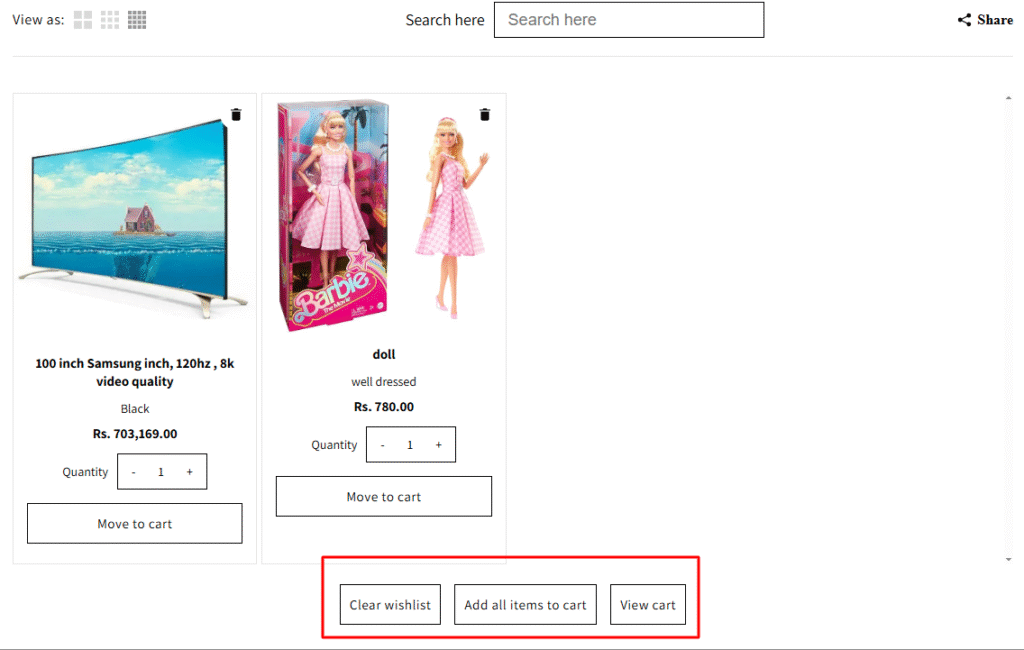
You can also check the appearance of your Move to Cart Button from the front end as shown :
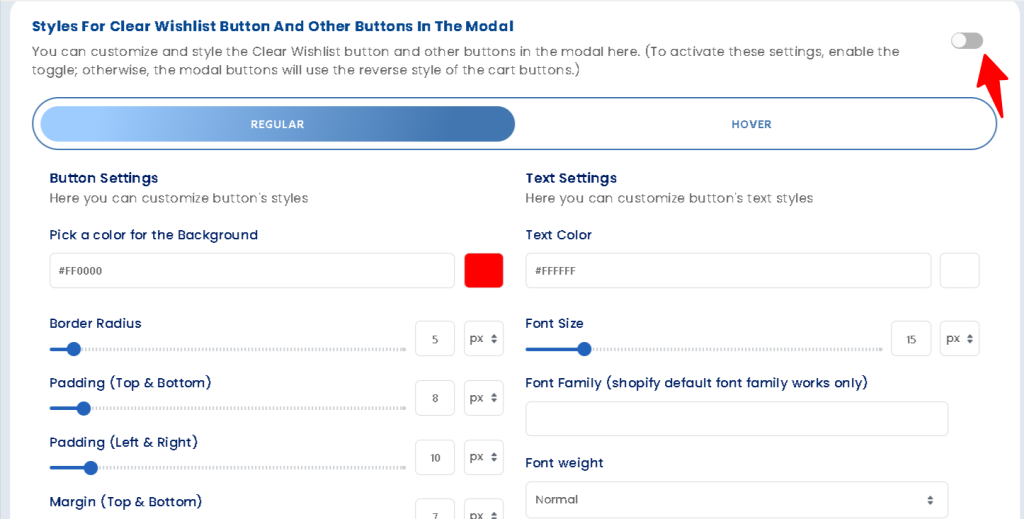
Styles for Clear Wishlist Button and Other Buttons in the Modal: #
You can customize and style the Clear Wishlist button and other buttons in the modal here. (To activate these settings, enable the toggle; otherwise, the modal buttons will use the reverse style of the cart buttons.)
Customize share modal Button appearance for the Modal, Page and Drawer option #