
For B2B stores, it’s common to restrict how customers purchase products—such as setting minimum order quantities, maximum limits, or allowing purchases only in specific multiples.
With Wishlist Guru, you can now reflect these quantity rules inside the wishlist modal, ensuring consistency between your cart rules and wishlist experience.
Why This Matters #
This feature ensures that:
- Customers follow your B2B quantity rules even from the wishlist
- You avoid invalid orders (e.g., below minimum quantity)
- The buying experience stays accurate and aligned with your catalog settings
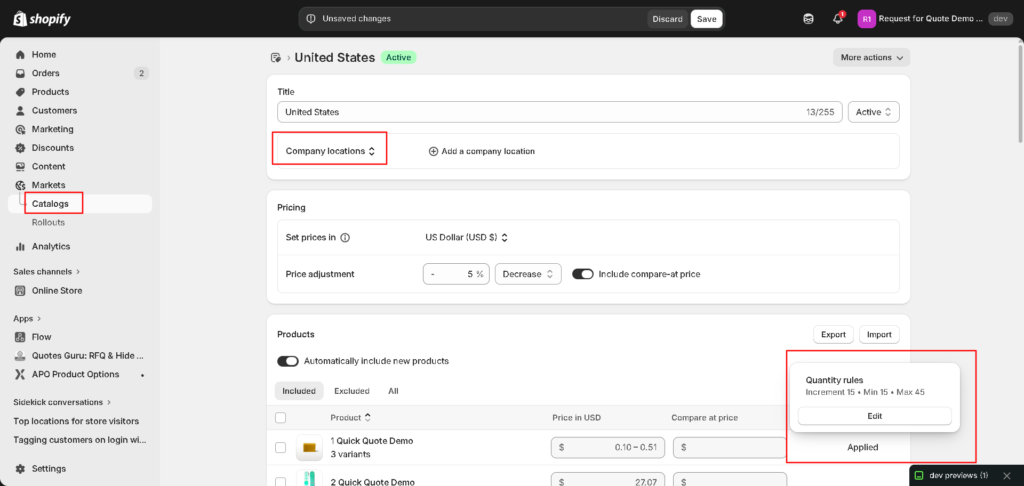
Shopify doesn’t allow our app to fetch Min. Qty rules configured under Catalogs so the only way to achieve this functionality is via Custom Codes. You will need to make sure all our Wishlist buttons and icons have these Custom attributes added so this min. qty rules data is passed with the product to our wishlist app, and we will control behaviour accordingly.
Enable Custom Code in Wishlist Guru #
- Go to Wishlist Guru → General Settings
- Scroll to Custom Code Integration
- Click Edit Settings
- Copy the required code from the Custom Quantity box (screenshot provided below)
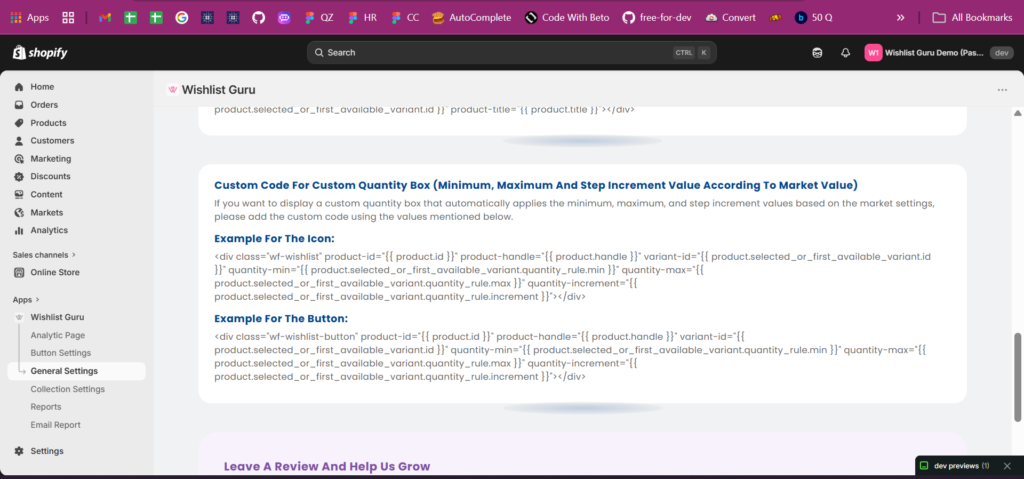
How to Add Code for Wishlist Icon (Collection + Product Pages) #
<div
  class="wf-wishlist"
  product-id="{{ product.id }}"
  product-handle="{{ product.handle }}"
  variant-id="{{ product.selected_or_first_available_variant.id }}"
  quantity-min="{{ product.selected_or_first_available_variant.quantity_rule.min }}"
  quantity-max="{{ product.selected_or_first_available_variant.quantity_rule.max }}"
  quantity-increment="{{ product.selected_or_first_available_variant.quantity_rule.increment }}"
></div>
How to Add Code for Wishlist Button (Product Page) #
<div
  class="wf-wishlist-button"
  product-id="{{ product.id }}"
  product-handle="{{ product.handle }}"
  variant-id="{{ product.selected_or_first_available_variant.id }}"
  quantity-min="{{ product.selected_or_first_available_variant.quantity_rule.min }}"
  quantity-max="{{ product.selected_or_first_available_variant.quantity_rule.max }}"
  quantity-increment="{{ product.selected_or_first_available_variant.quantity_rule.increment }}"
></div>
Where to Add This Code #
- Collection Page:
product-grid-item.liquid - Product Page:
product.liquid
Replace your existing wishlist code with the updated version above.
What Happens After Setup #
- Wishlist modal will:
- Show minimum quantity
- Enforce maximum limits
- Increase quantity based on step value
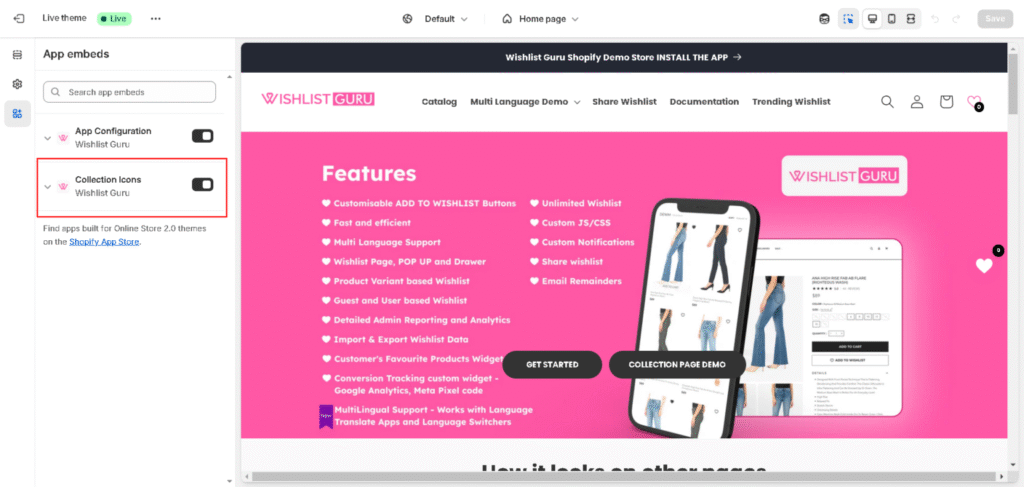
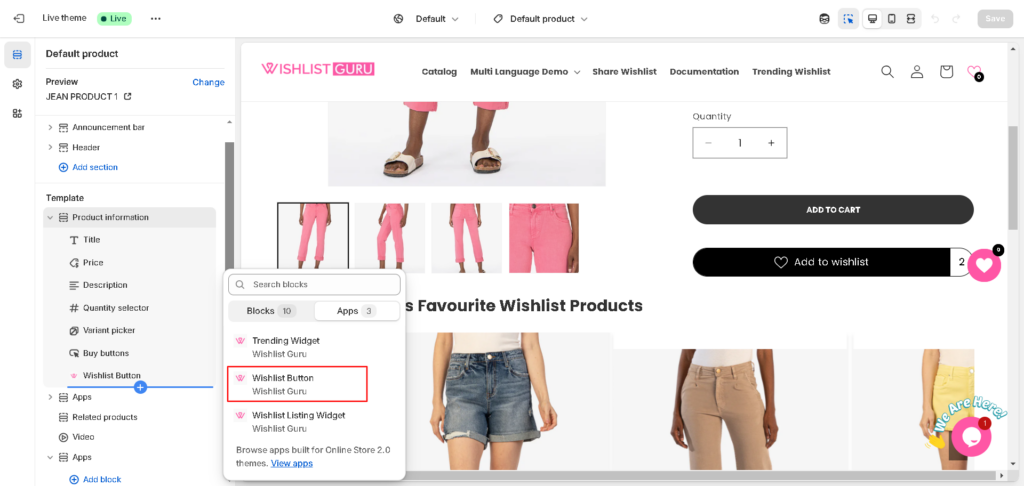
- Default app blocks for the wishlist icon may be disabled to ensure correct behaviour.
Example Use Case #
A wholesale store sells products in bulk:
- Minimum order: 50 units
- Increment: 25 units
Customer experience:
- Cannot select below 50
- Can only increase in steps: 50 → 75 → 100
This ensures compliance with B2B ordering rules across wishlist and cart.


