
This setting allows you to control the visibility of prices, quantity, and the “Add to Cart” button on the wishlist page, so you can customize what customers see.
Here’s how you can configure these B2B-specific settings: #
- Go to General Settings
- Find B2B Solutions: In the settings, you’ll see the B2B Solutions section.
- Click on Edit Settings to start customising the display of product information.
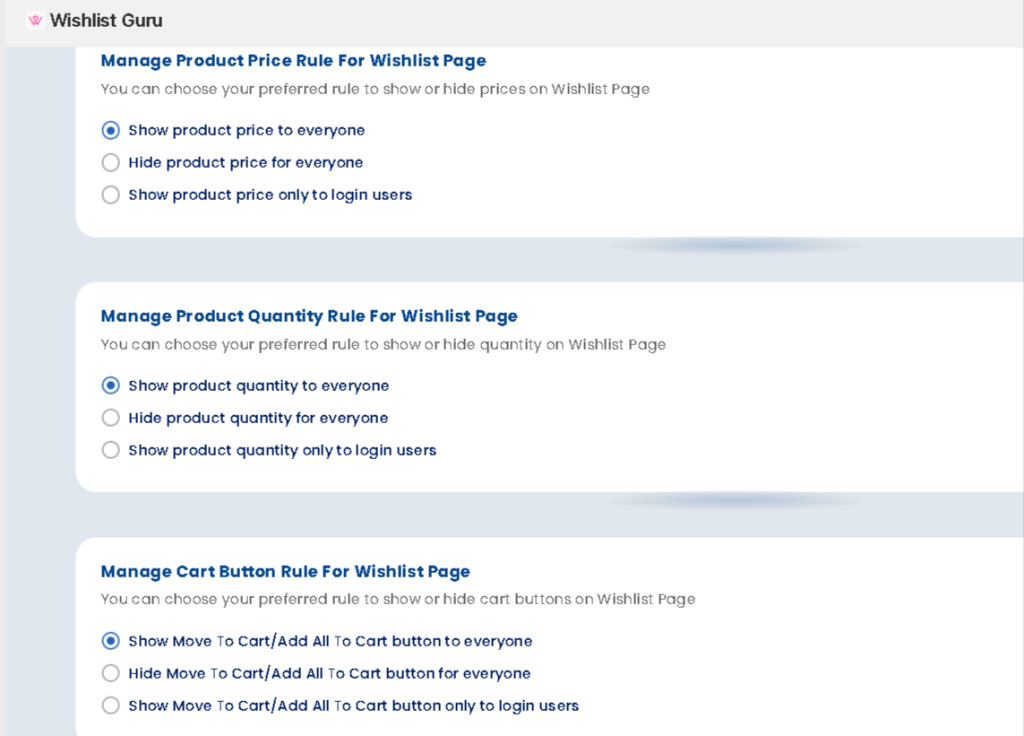
1. Product Price Settings #
In this section, you can control how product prices are displayed on your storefront. You have three options to choose from:
- Show Product Price to Everyone: This will display the product price to all visitors of your store.
- Hide Product Price from Everyone: This option will hide the product prices from all visitors.
- Show Product Price Only to Logged-in Users: This option restricts product price visibility to users who are logged in to your store. This is particularly useful if you want to keep pricing exclusive to registered or verified customers.
Example: If you choose to hide product prices from everyone in the admin panel, as shown in the example, and then refresh your storefront, you will see that all item prices are now hidden.
Example: If you choose to show product prices only to logged-in users, only registered customers will be able to view the prices of the items, enhancing privacy and exclusivity.
2. Product Quantity Rule #
In this section, you can decide how to manage the visibility of product quantities. You have three options here as well:
- Show Quantity: This will display the available quantity of the product to all customers.
- Hide Quantity: This option will hide the product quantity from all visitors.
- Show Quantity Only to Logged-in Users: This will only show the available quantity of a product to logged-in users.
Example: Just like with the price, you can choose to hide or show the quantity, and the changes will be reflected immediately on the storefront upon refreshing.
3. Move to Cart / Add to Cart Button #
You can also manage the visibility of the Add to Cart or Move to Cart buttons. Choose one of the following:
- Show the Button to Everyone: This will display the button to all users, allowing them to add products to their cart.
- Hide the Button from Everyone: This will hide the button from all visitors.
- Show the Button Only to Logged-in Users: This will restrict the Add to Cart functionality to logged-in users only.
Why Use B2B Solutions? #
Wishlist Guru introduced this feature specifically for businesses that cater to B2B customers. These solutions give you more control over what data is shown to different types of users. Whether you want to keep pricing, product quantities, or purchasing options restricted to registered users only, these settings ensure that you can tailor your storefront to meet your business needs.
With these features, you can enhance your customer experience and ensure that only the right information is visible to the right audience, making your store more suited for business-to-business transactions.


