
Wishlist Guru lets you download your wishlist report data as a CSV file, so you can analyze it in Excel or Google Sheets, share it with your team, or import it into other marketing tools. You can export the full report or narrow it down to a specific date range before downloading.
Where to Find the Export Option #
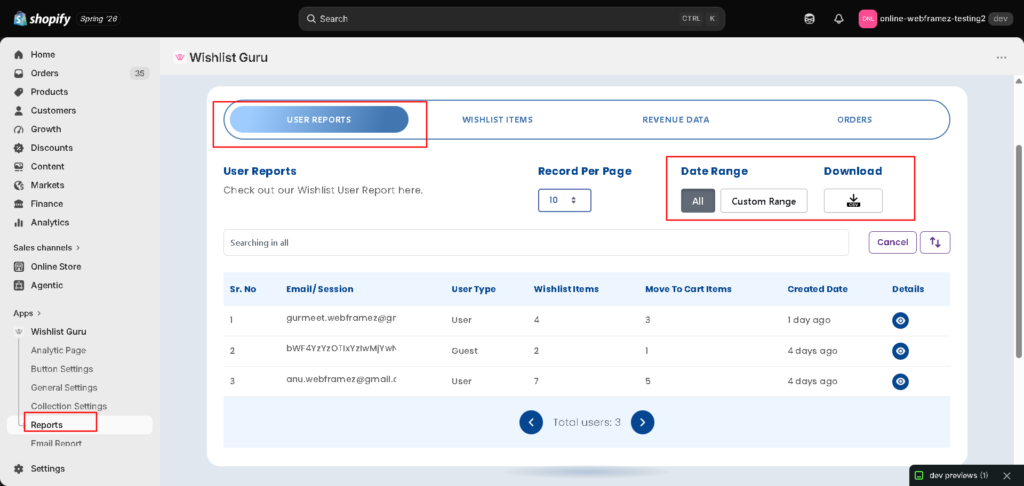
- Open the Wishlist Guru app from your Shopify admin.
- In the app menu, go to Reports.
How to Export a Report #
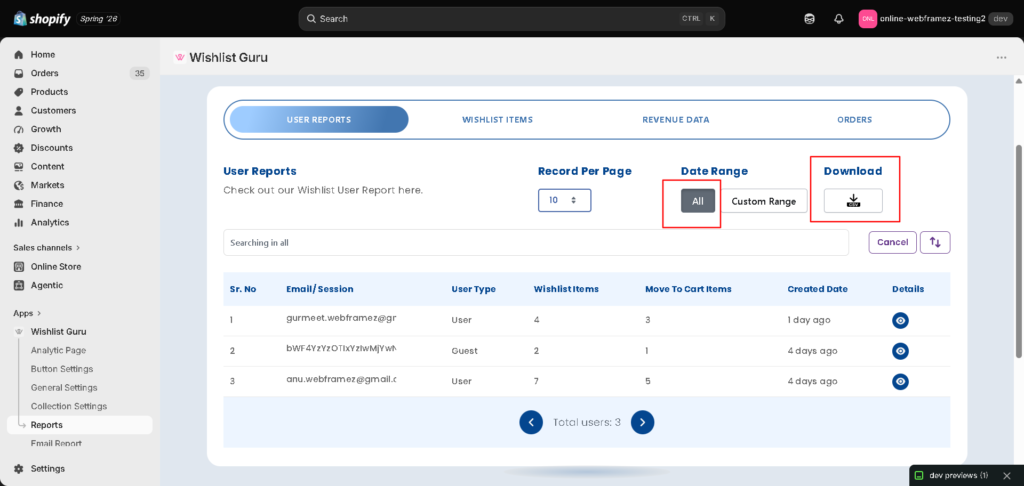
- Select a date range. In the Date Range section, choose All to include every record, or click Custom Range to limit the report to a specific period.
- Click the CSV download button. Select the download icon under Download, and the report will export as a CSV file to your device.
What’s Inside the Exported File #
Open the downloaded file in any spreadsheet application (Excel, Google Sheets, WPS Office, etc.). For example, the User Reports export includes a row for each wishlisted item with the following columns:
| Column | What It Tells You |
|---|---|
| The customer (or guest session) who wishlisted the item. | |
| Product ID / Variant ID | The Shopify IDs of the wishlisted product and variant. |
| Handle | The product’s URL handle in your store. |
| Price | The price of the item. |
| Title | The product name. |
| Quantity | The quantity wishlisted. |
| Image | A direct link to the product image. |
How to Use the Exported Data #
- Build targeted campaigns. Filter the spreadsheet by product to find every customer who wishlisted a specific item, then reach out with a promotion or restock announcement.
- Spot your most-wanted products. Sort or pivot by product title to see which items appear on wishlists most often — useful for planning inventory and promotions.
- Compare periods. Export two custom date ranges (for example, this month vs. last month) to track how wishlist activity is trending.
- Share with your team. CSV files open anywhere, making it easy to pass wishlist insights to your marketing or merchandising teams.
Related Articles #
Still have questions? Reach out through the support@webframez.com email and we’ll be happy to help.


