
By default, Wishlist Guru displays the wishlist button on your product details page using one of two methods:
- Automatic Inject Button – the app automatically injects the wishlist button onto your product page.
- App Block via Theme Editor – the wishlist button is added manually as an app block through the theme editor.
The steps to hide the wishlist button depend on which method your store is currently using. Follow the instructions below based on your setup.
Method 1: If You’re Using the Automatic Inject Button #
If the wishlist button is currently appearing automatically on your product page, simply switch the display method to Manual. This will stop the app from injecting the button automatically.
Steps:
- Go to the Wishlist Guru app dashboard.
- Navigate to the Display Settings section.
- Locate the Wishlist Button on the Product page option.
- Change the setting from Automatic Inject Button to Manual.
- Save your changes.
That’s it! The wishlist button will no longer appear on your product details page.

Method 2: If You’re Using the App Block (Manual Method) #
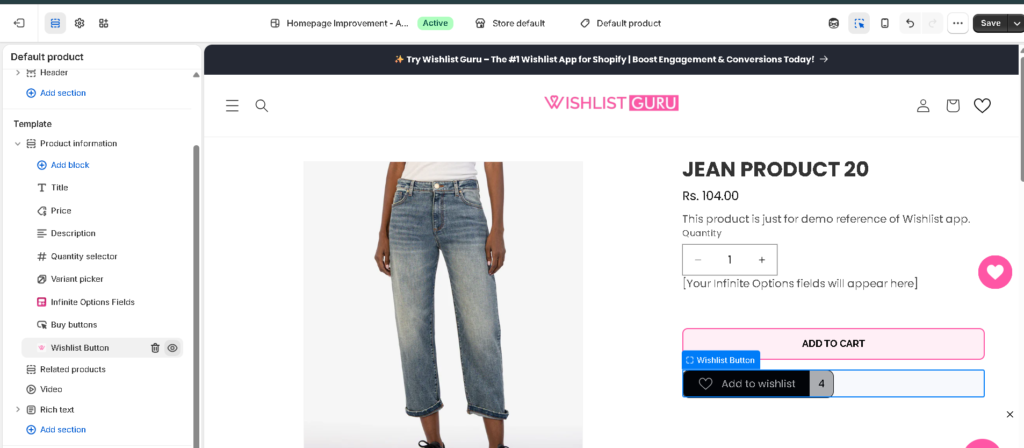
If your store is already set to Manual and the wishlist button is added via the theme editor as an app block, you’ll need to hide it directly from the theme editor.
Steps:
- From your Shopify admin, go to Online Store > Themes.
- Click Customize on your active theme.
- From the template selector at the top, choose the Product template.
- Scroll to the area just above the Add to Cart button — this is where the Wishlist Button app block is located.
- Hover over the Wishlist Button app block. You’ll see an eye icon next to it.
- Click the eye icon to hide the block.
- Click Save to apply your changes.
The wishlist button will now be hidden from the product details page.
FAQ #
Q: How do I remove the wishlist button from my product page?
A: It depends on your display method — switch to Manual in app settings if using auto-inject, or hide the app block via the theme editor’s eye icon if using Manual already.
Q: Will hiding the wishlist button affect other pages like the collection page?
A: No, this only affects the product details page. Other placements need to be hidden separately.
Q: Can I bring the wishlist button back later?
A: Yes, simply switch the setting back to Automatic, or click the eye icon again in the theme editor to unhide the app block.


