
Want to know who is sharing wishlists from your store? With Wishlist Guru’s Affiliation Customer Metafield feature, you can automatically attach a customer-specific value — such as an Affiliate ID, Membership ID, or referral code — to every shared wishlist URL. The value can also be displayed on the shared wishlist page itself, including the product cards and page title.
This makes it easy to track referrals, reward affiliates, personalize shared pages, and connect wishlist activity back to individual customers.
What This Feature Does #
When a customer shares their wishlist, Wishlist Guru generates a shareable URL. With this feature enabled, the app reads a value from a Shopify customer metafield and appends it to that URL as a query parameter.
For example, instead of a standard share link:
https://your-store.myshopify.com/apps/wg-wishlist?id=12345&name=John
the shared link becomes:
https://your-store.myshopify.com/apps/wg-wishlist?id=12345&name=John&devplan=Premium
Here, devplan is the parameter name you choose, and Premium is the value pulled from the customer’s metafield.
Common Use Cases #
- Affiliate tracking — attach each customer’s affiliate ID to shared wishlists so you can attribute sales generated from shared links.
- Membership tiers — show a customer’s plan or tier (e.g., Premium, Gold) on their shared wishlist page.
- Referral programs — pass referral codes through wishlist shares automatically.
- Custom attribution — track any custom customer attribute you store in Shopify.
Prerequisite: Create a Customer Metafield in Shopify #
Before configuring the feature, you need a customer metafield definition in your Shopify admin:
- Go to Shopify Admin → Settings → Custom data → Customers.
- Click Add definition.
- Create the customer metafield you want to use in the wishlist share URL (for example, a metafield with the key
devplanunder thecustomnamespace). - Make sure your customers have values saved in this metafield.
How to Configure the Feature #
In your Shopify admin, open Wishlist Guru → General Settings and scroll to the Affiliation Customer Metafield section.
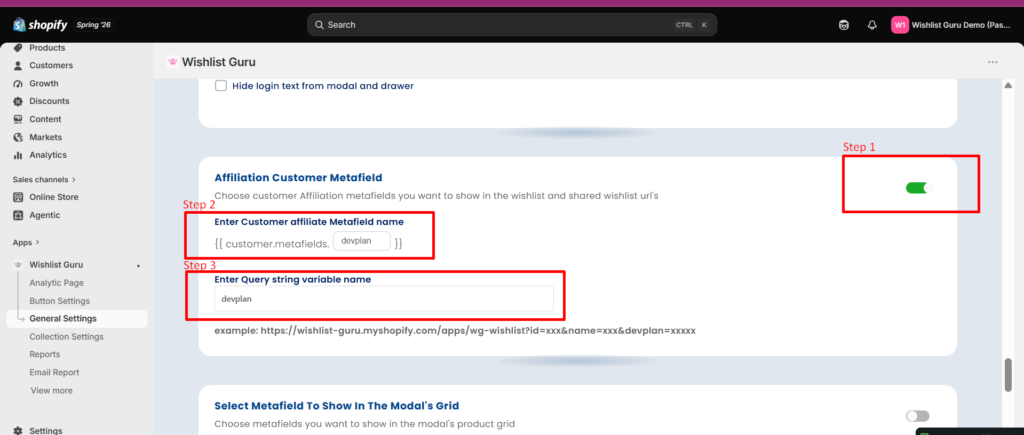
Step 1: Enable the Feature #
Turn on the Affiliation Customer Metafield toggle.
Step 2: Enter the Customer Metafield Name #
In the Enter Customer Affiliate Metafield Name field, enter only the metafield key you created in Shopify.
For example, if your full metafield reference is:
customer.metafields.custom.devplan
enter only:
devplan
The app automatically expands it to:
{{ customer.metafields.custom.devplan }}
Note: Enter only the metafield key. Do not include customer.metafields or the namespace.
Step 3: Enter the Query String Variable Name #
In the Enter Query String Variable Name field, choose the name of the URL parameter that should appear in the shared wishlist link — for example:
devplan
This generates shared wishlist URLs like:
https://your-store.myshopify.com/apps/wg-wishlist?id=12345&name=John&devplan=Premium
Where:
devplan→ the URL parameter (your Query String Variable Name)Premium→ the value retrieved from the customer’s metafield
You can choose any parameter name, but we recommend using the same name as your metafield key for consistency.
That’s it — once saved, every wishlist shared by a logged-in customer will include their metafield value in the URL.
FAQ #
What happens if a customer doesn’t have a value in the metafield? If the metafield is empty for a customer, the parameter simply won’t carry a value in their shared link.
Does this work for guest (not logged-in) visitors? No. The feature reads data from the Shopify customer record, so it applies to logged-in customers who have the metafield set.
Can I use a different parameter name than my metafield key? Yes. The Query String Variable Name is independent of the metafield key — but keeping them the same makes your links easier to read and debug.
Where does the value appear? In the shared wishlist URL, and optionally on the shared wishlist page — including the product cards and the page title.
Need help setting this up? Reach out to the Wishlist Guru support team and we’ll be happy to assist.


