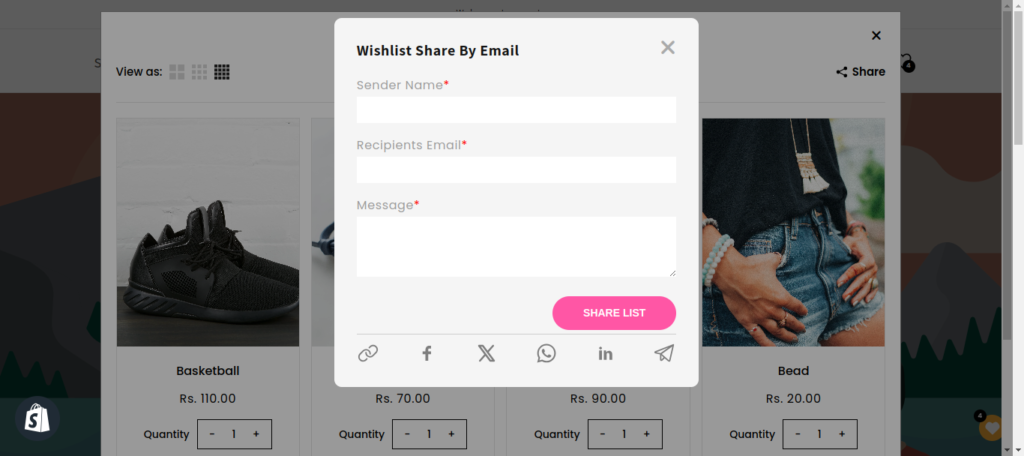
Wishlist Guru allows you to control how customers share their wishlists across different platforms such as URL, Email, Facebook, and X (formerly Twitter). You can decide who can share wishlists, how they appear, and which channels are available.
This helps you tailor the sharing experience based on your store’s needs and customer behavior.
Note: In the Free plan, customers can only share wishlists via URL. To enable sharing via Email and social platforms, you may need to upgrade to the Pro plan or higher.
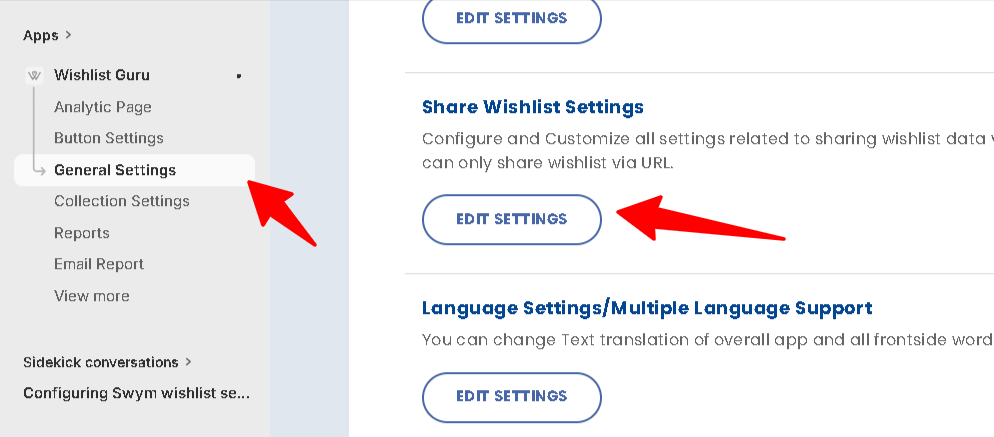
How to Access Share Wishlist Settings #
Follow these steps to configure sharing options:
- Go to the Dashboard
- Navigate to General Settings
- Find Share Wishlist Settings
- Click on Edit Settings
Who Can Share Wishlist #
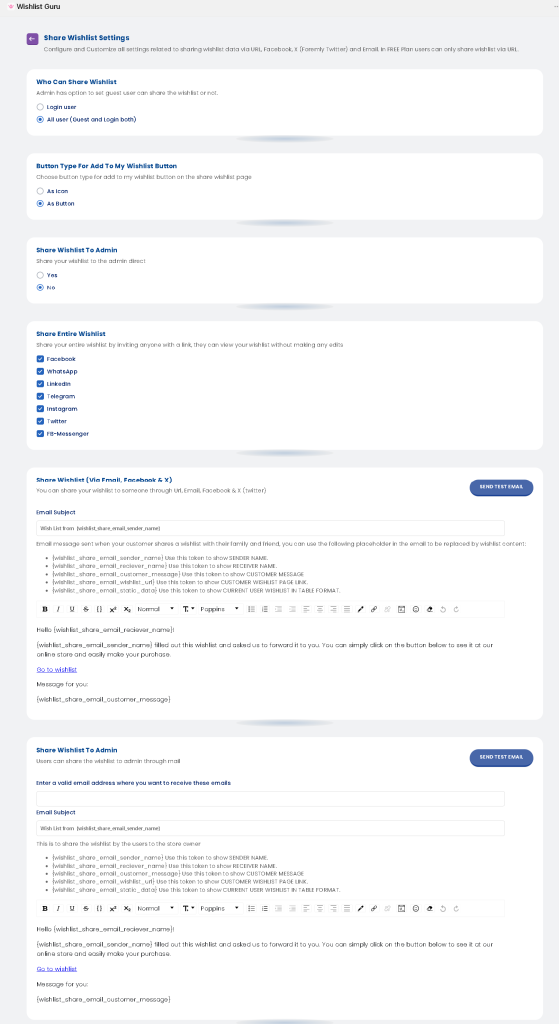
This setting allows you to control which users can share their wishlist.
Options:
- Login user only → Only logged-in customers can share
- All users (Guest and Login both) → Anyone can share wishlist
👉 Recommended: Enable All users to increase sharing and engagement.
Button Type for “Add to My Wishlist” #
Choose how the wishlist button appears on the shared wishlist page.
Options:
- As Icon → Minimal and compact
- As Button → More visible and clickable
👉 Use Button for better visibility and conversions.
Share Wishlist to Admin #
Allow customers to share their wishlist directly with the store admin.
Options:
- Yes → Customers can send wishlist to admin
- No → Disable this feature
👉 Useful for B2B or inquiry-based stores.
Share Entire Wishlist (Social Platforms) #
Select which platforms customers can use to share their wishlist.
Available Options:
- Telegram
- FB Messenger
👉 Enable only the platforms relevant to your audience.
Share Wishlist via Email, Facebook & X #
This section allows you to customize the email content when customers share their wishlist.
You can configure: #
- Email subject
- Email message content
- Personal message field
Dynamic placeholders available: #
- Sender name
- Receiver name
- Customer message
- Wishlist URL
- Wishlist data (table format)
👉 This helps personalize the sharing experience.
Share Wishlist to Admin (Email Settings) #
You can configure how wishlist emails are sent to the admin.
Options include: #
- Admin email address
- Email subject
- Email content
Customers can share their wishlist directly with you via email for better communication and follow-ups.
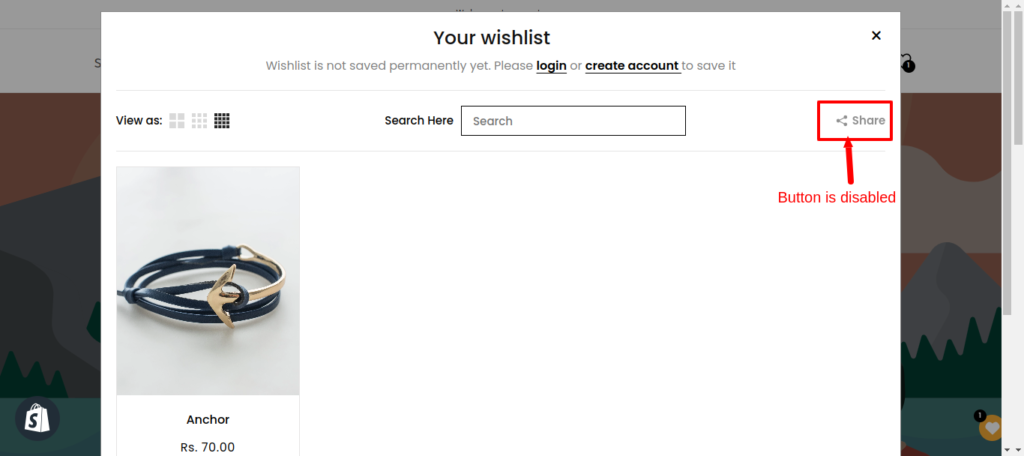
When you select the option as a login user #
When the administrator selects the option of Share wishlist as a Logged-in user, only users who are logged in to your store will be able to share their wishlist with other people. If they are not logged in, then the button will be disabled until the user logs in first ( The difference is shown in the screenshots below )