
The Add all to my wishlist feature in Wishlist Guru allows customers to quickly add all products from a shared wishlist to their own wishlist.
This feature is available on the Basic plan and supports both single-wishlist and multi-wishlist setups.
How to Enable the Feature #
- Open the Wishlist Guru app in your Shopify admin.
- Go to General Settings.
- Open Share Wishlist Settings.
- Enable the Add all to my wishlist option.
- Save your changes.
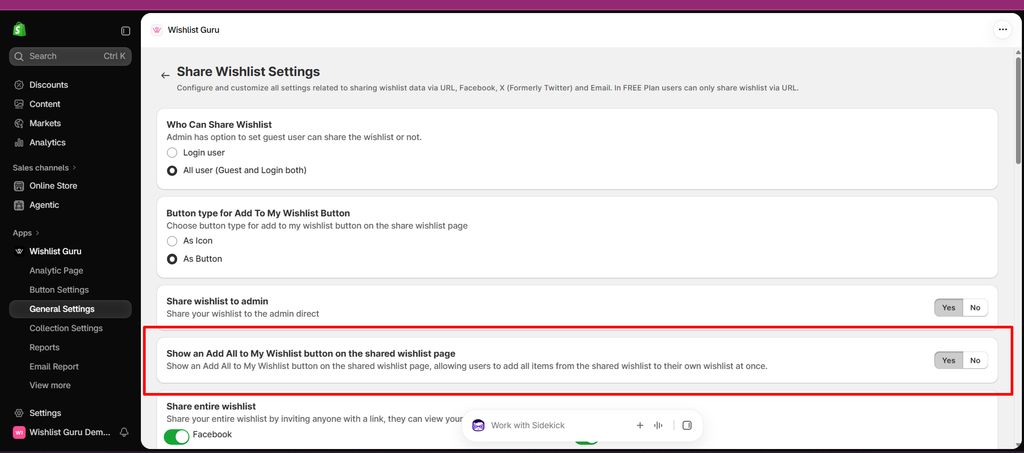
Once enabled, customers can use the Add all to my wishlist button when viewing a shared wishlist.
How It Works #
The customer experience depends on whether your store uses a single wishlist or multiple wishlists.
Single Wishlist #
For stores using a single wishlist, the process is simple:
- A customer opens a shared wishlist.
- They click Add all to my wishlist.
- All products from the shared wishlist are added directly to their wishlist.
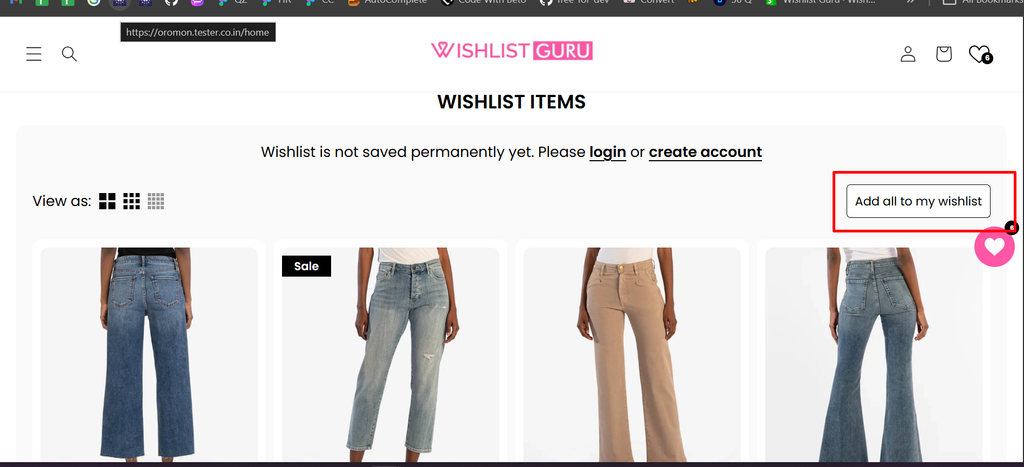
No additional selection is required.
Multi Wishlist #
For stores using multiple wishlists, customers can choose where to add the shared wishlist items.
- The customer opens a shared wishlist.
- They click Add all to my wishlist.
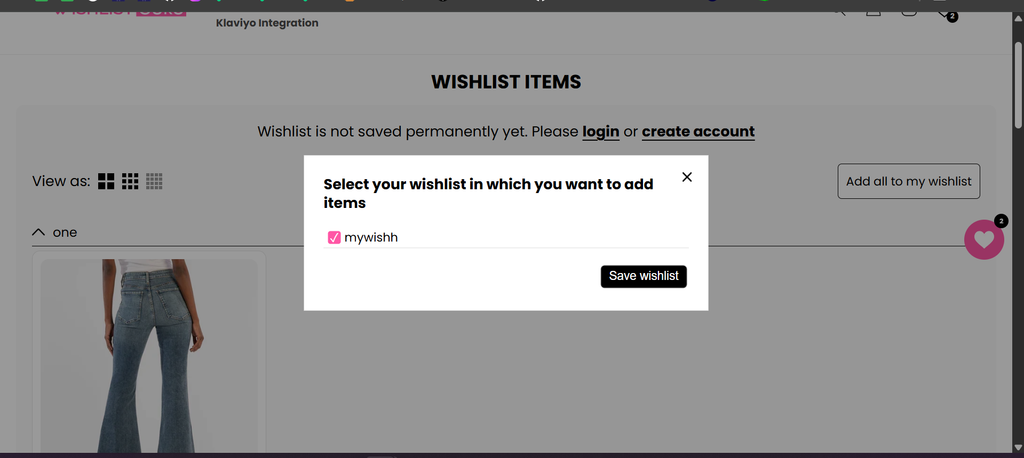
- A popup appears asking them to select the wishlist they want to add items from.
- The customer selects the wishlist and clicks Add.
- A second popup appears showing their own wishlists.
- The customer selects the wishlist where they want to add the products.
- They click Save.
- The shared wishlist items are added to the selected wishlist.
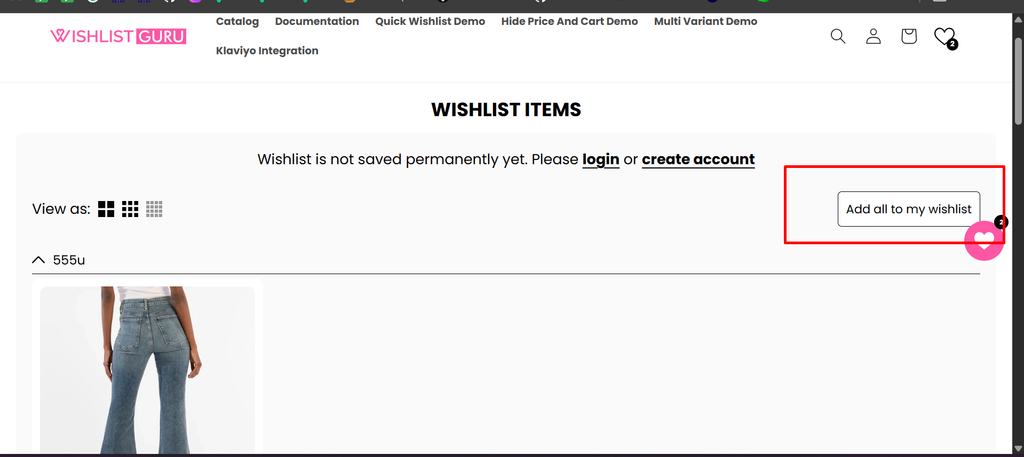
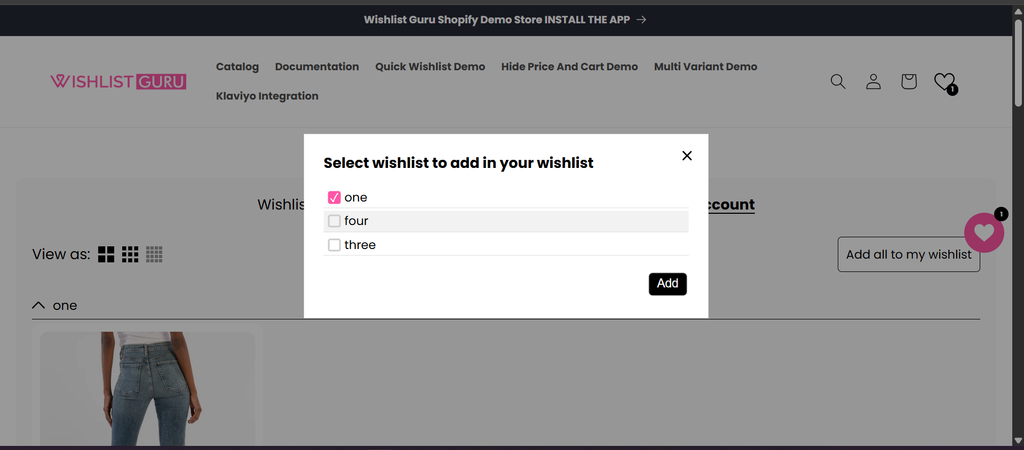
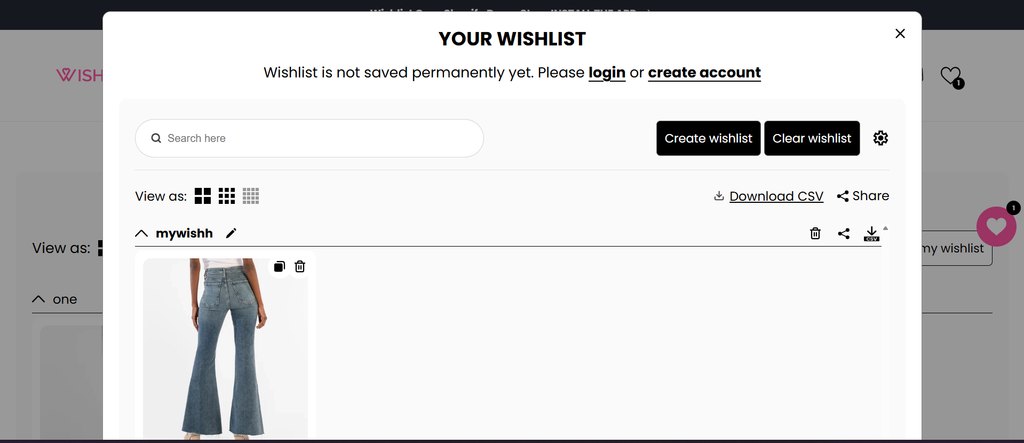
This gives customers more control over how they organize products across their different wishlists.


