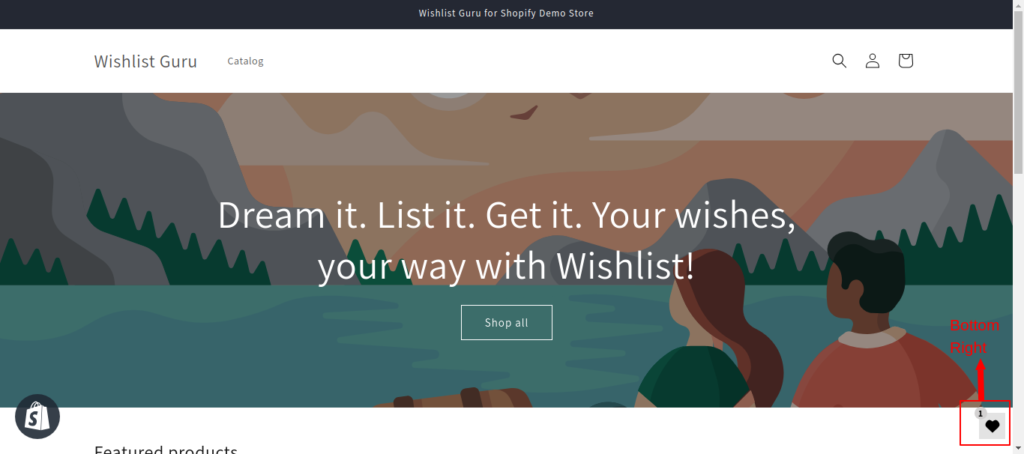
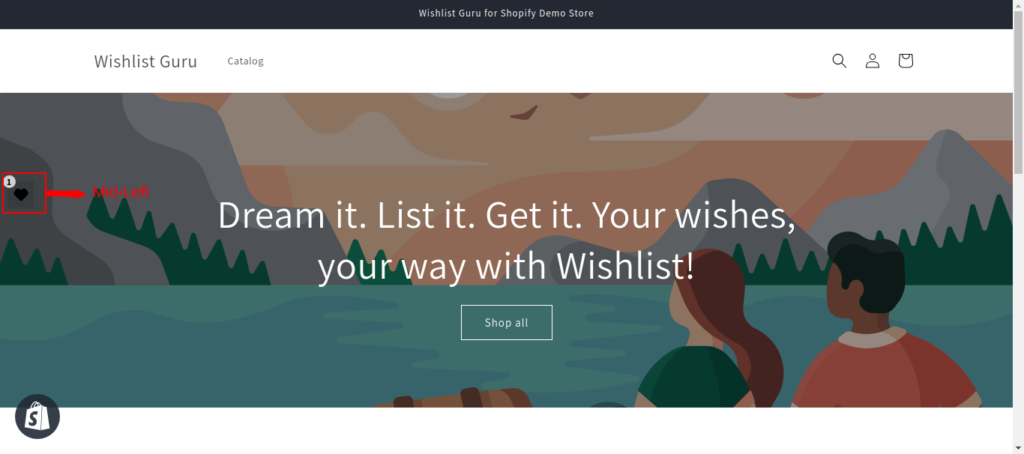
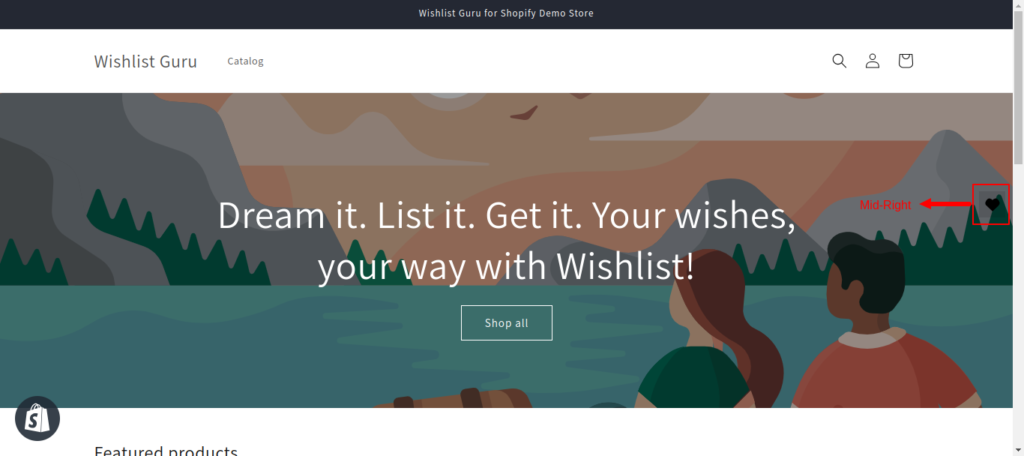
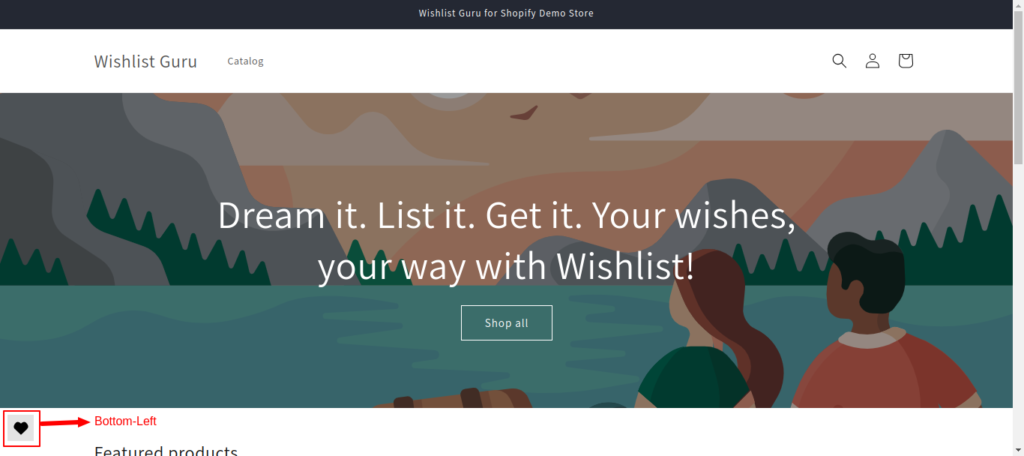
Manage how the floating or sticky wishlist icon appears on your store. You can choose to show or hide the icon, as well as customize its position—such as bottom right, middle left, or other placements—to match your store design and improve user experience.
How to Enable it: #
- Go to Dashboard
- Scroll below you will find section Wishlist Icon Location, see below
- Click on Configured
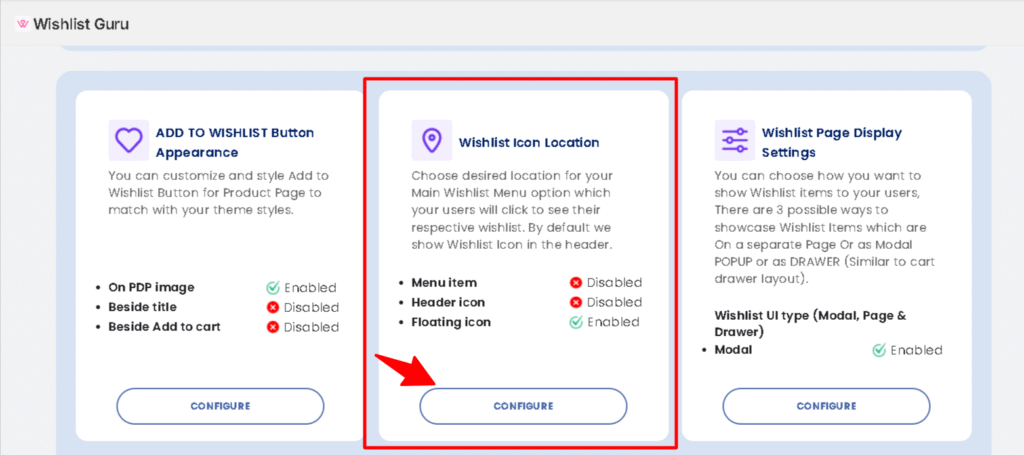
How to Show or Hide Floating/Sticky Wishlist Icon #
After that, you will be taken to the page where all the settings related to the wishlist icon location are located.
Within this section, select the option marked “As a floating icon button”. This ensures that the Wishlist will be displayed as a floating icon as per your desired location, which is described in the following images.

Customize Floating/Sticky Wishlist Icon and Position #
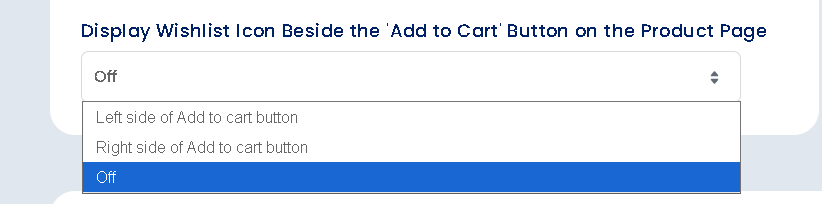
Save settings after configuring the Wishlist display options by clicking on the “Save” button (located in the top right corner) to apply the changes.
Below are the images that show the floating icons according to their selected positions: