
Adding a wishlist heart icon to your store header makes it easy for customers to access their saved products at any time. With Wishlist Guru, you can quickly enable and customize the header icon to match your store’s design and improve user experience.
How to Enable the Wishlist Heart Icon in Header: #
- Go to Dashboard
- Scroll below, you will find the section Wishlist Icon Location, see below
- Click on Configured
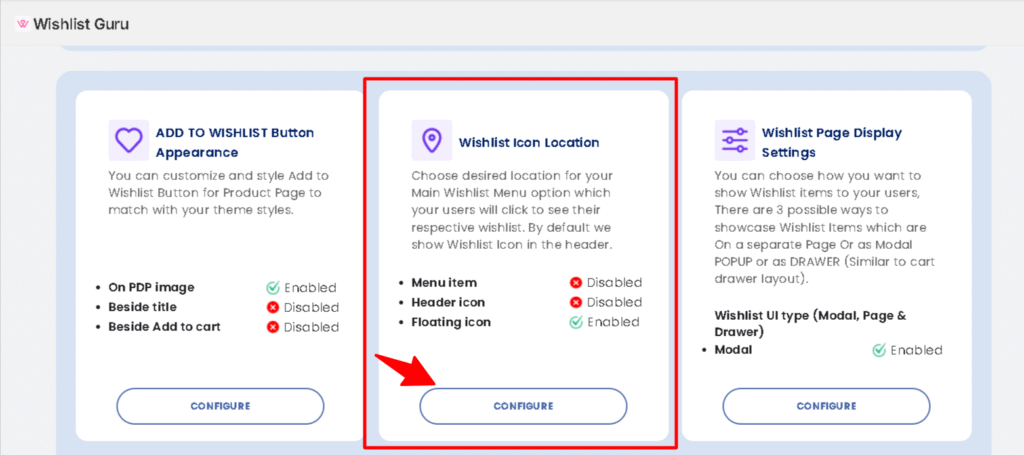
You will be directed to the section as shown in the image below of the General Settings page.
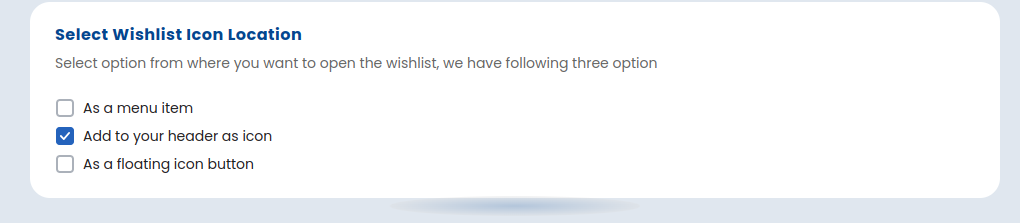
Within this section, select the option marked as “Add to your header as icon”. This ensures that the Wishlist icon will be displayed on the header.
Save settings after configuring the Wishlist display options by clicking on the “Save” button ( located in the top right corner ) to apply the changes. Congratulations! Your Wishlist will now be accessible from the header icon.
Customisation for header icon
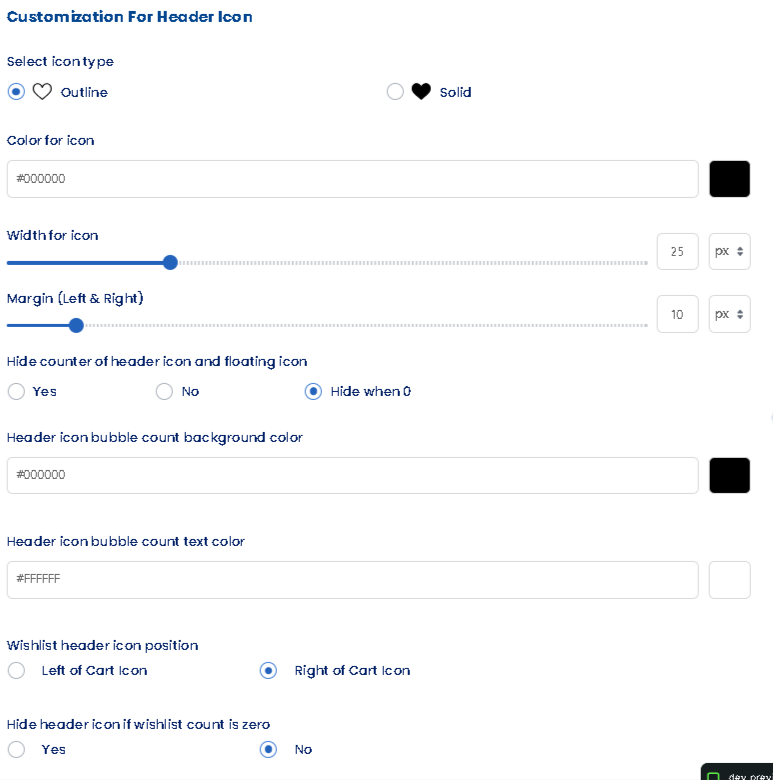
According to your theme, you can do various customisations like :
1. Select Icon Type
Choose between outline or solid heart icon style.
2. Color for Icon
Set the heart icon color using a hex code.
3. Width for Icon
Define the icon’s width in pixels.
4. Margin (Left & Right)
Set horizontal spacing around the icon.
5. Hide Counter of Header & Floating Icon
Toggle to show or hide the wishlist item count badge.
6. Header Icon Bubble Count Background Color
Set the background color for the count bubble.
7. Header Icon Bubble Count Text Color
Set the text color inside the count bubble.
8. Wishlist Header Icon Position
Choose the icon’s position relative to the cart or hide it.
9. Hide counter of header icon and floating icon
If you want to hide the wishlist item count, we provide an option
Add wishlist header icon using custom code in the theme file: Learn here


