
Control how and when you receive wishlist email notifications with Wishlist Guru. You can easily choose to opt out or manage your email preferences based on your needs.
This setting helps ensure that customers only receive relevant wishlist updates, improving their experience while reducing unnecessary emails.
Manage Default Wishlist Email Preferences in Wishlist Guru #
Store owners can also control the default email subscription behaviour for wishlist notifications.
- Go to Wishlist Guru → General Settings
- Scroll below and find Email Reminders → Click edit settings
- Email Opt-In Preference and choose the default option:
Subscribed – Users will automatically receive wishlist email notifications.
Opt-out – Users will not receive wishlist emails unless they choose to opt in.
This setting helps merchants follow privacy regulations (such as GDPR) or control how wishlist email notifications are sent to customers by default.
How it works #
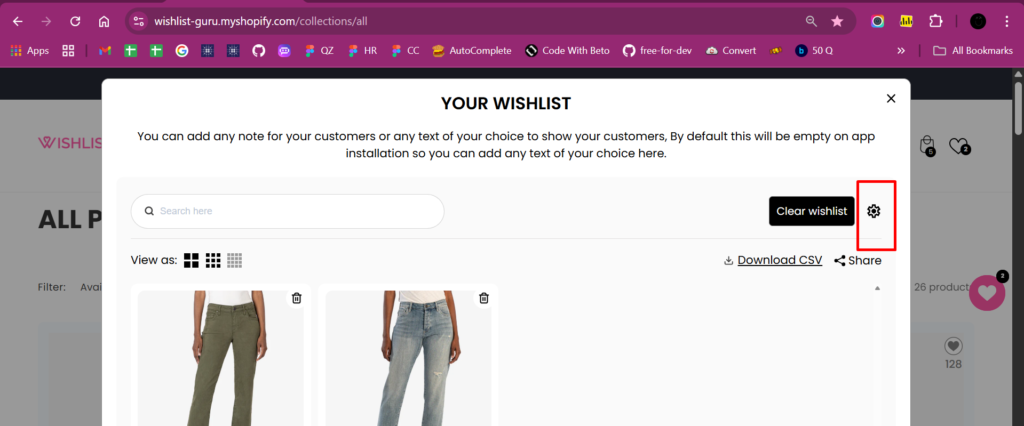
- Customers open the wishlist and click the Settings (⚙️) icon.
- Logged-in customers can manage:
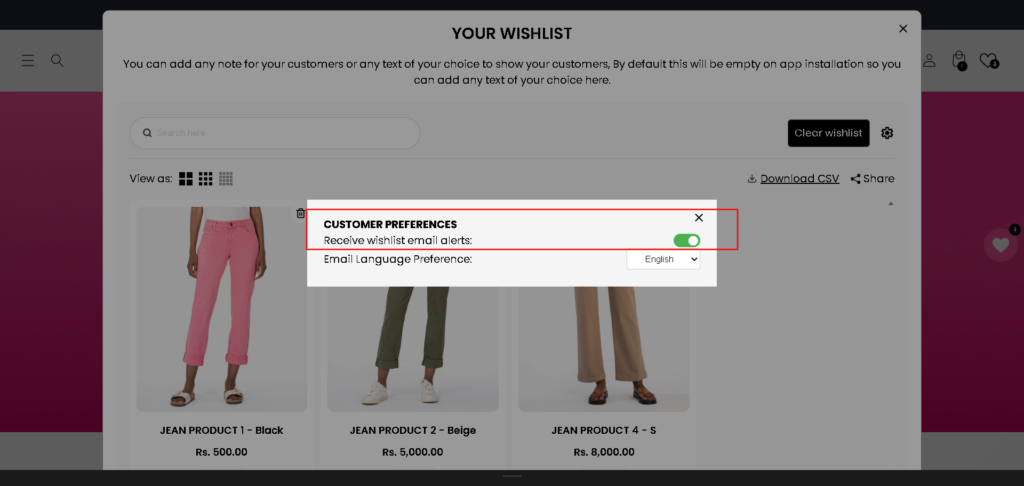
- Receive Wishlist email alerts (on/off)
- Email language preference (Pro plan)
Receive Wishlist Email Alerts (On/Off) #
The Receive Wishlist Email Alerts option allows customers to control whether they want to receive wishlist-related emails from your store.
What this setting does #
Customers can choose to turn wishlist email notifications on or off based on their personal preference.
This is especially important for compliance with data-privacy regulations such as European email consent laws (GDPR), where users must have clear control over marketing communications.
Real-Life Example: A customer from Europe visits your store and adds products to their wishlist. Due to GDPR regulations, the customer prefers not to receive promotional or reminder emails. They log in to their account, turn Receive Wishlist Email Alerts off, and continue browsing your store. After this, even if they add new items to their wishlist, the Wishlist app will not send any wishlist-related emails, fully respecting their preference and privacy choice.
How customers manage this preference #
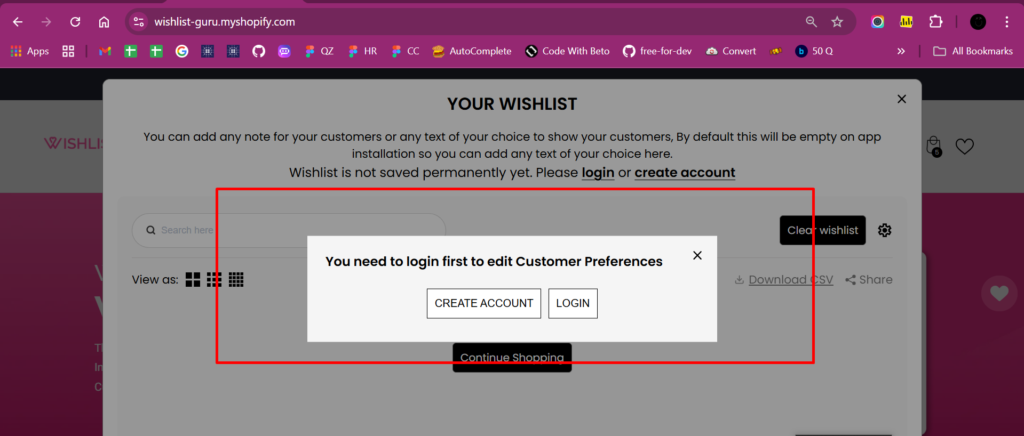
To change this setting, the customer must be logged in to their account.
Once logged in, they can access Customer Preferences from the Wishlist and enable or disable email notifications.
How emails are sent based on the selection #
- If Email Alerts are ON:
The Wishlist app will send wishlist emails (such as reminders or updates). - If Email Alerts are OFF:
No wishlist-related emails will be sent to that customer.
The app fully respects the customer’s choice.
Klaviyo integration support #
For stores using Klaviyo, we provide a dedicated customer preference variable.
- Merchants who have connected Klaviyo can use this variable in their Klaviyo flows.
- This allows you to conditionally send emails only when the customer has opted in.
- If the customer has opted out, Klaviyo flows can automatically stop wishlist emails for that user.
This ensures accurate targeting, better engagement, and full compliance with customer communication preferences.
Wishlist Email Alerts — Customer Opt-In & Unsubscribe Control #
Give your customers full control over their wishlist email notifications. To receive wishlist alerts (such as back-in-stock and price-drop emails), customers simply turn on the “Receive wishlist email alerts” toggle in the Customer Preferences panel, found by clicking the settings (gear) icon on the wishlist page. They can also choose their preferred email language for a localized experience.
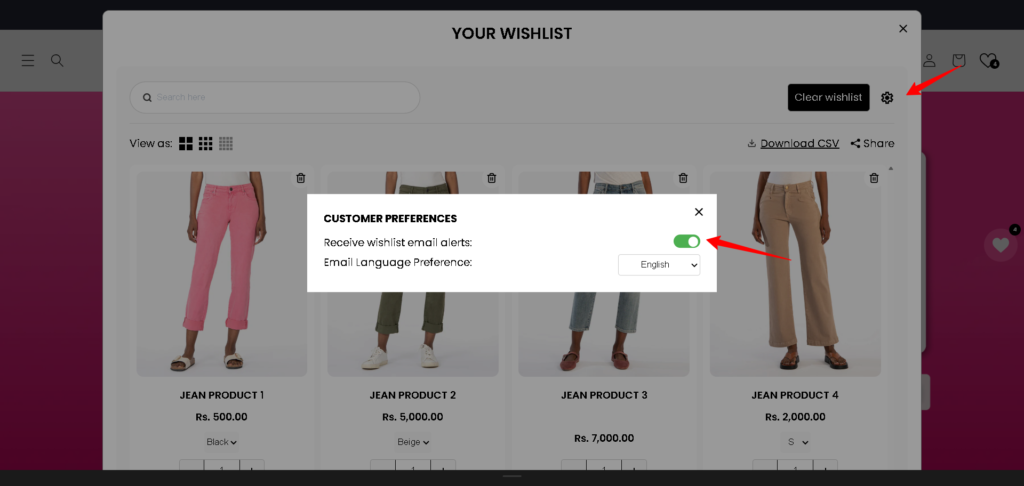
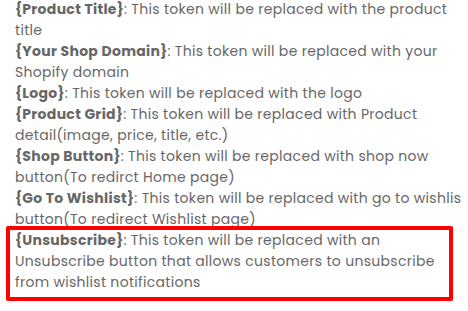
For customers who no longer wish to receive alerts, the {Unsubscribe} token adds an unsubscribe button directly inside your email template. One click removes them from future wishlist notifications — no support requests needed. If they change their mind later, they can re-subscribe anytime by turning the toggle back on in Customer Preferences.
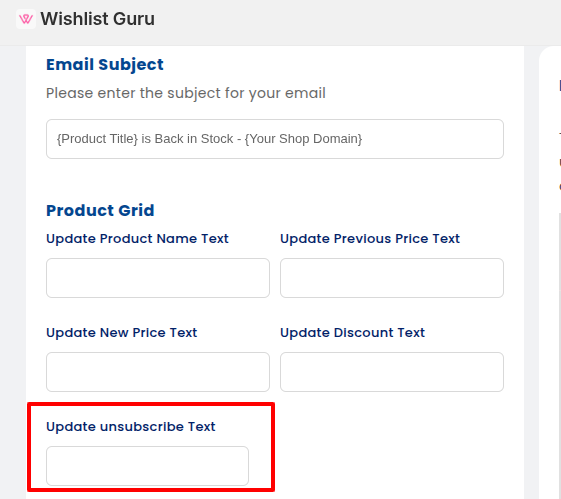
Together, these options keep your mailing list clean and engaged, reduce spam complaints, improve email deliverability, and help your store stay compliant with email marketing regulations like CAN-SPAM and GDPR. You can also customize the unsubscribe button text in the “Update Unsubscribe Text” field to match your brand’s voice.
How to Set Up Multi-Language Wishlist Email Notifications Click here
Customise your email template: Click here
Klaviyo integration: Click here


