
Show the wishlist on any page in your Shopify store to create a more flexible and customized shopping experience.
With Wishlist Guru, you can display the wishlist as a drawer, modal popup, or a dedicated page. Additionally, you can embed the wishlist section within any page—allowing you to match your store’s layout and design perfectly.
You can achieve this using either the Shopify theme editor or by adding custom HTML code. Follow the methods below to get started.
Ways to Show Wishlist on Any Page in Shopify: #
Method 1: Add Wishlist Section Using Shopify Theme Editor #
Please go through the steps mentioned below :
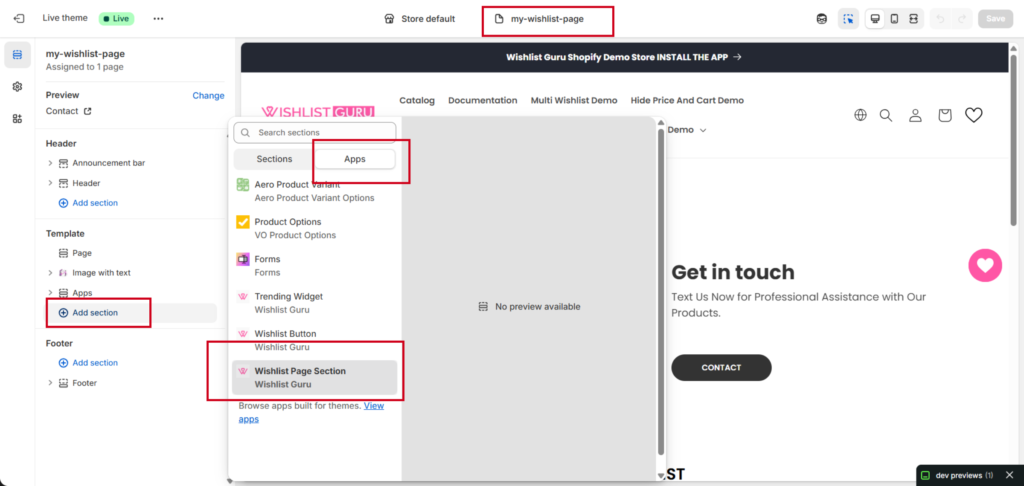
- Go to the theme, click on the customize
- Choose the Page from the dropdown
- You can choose the page template where you want to add the Wishlist Page Section
- Click Add section, choose APP tab
- Click on Wishlist Page Section
- Click save
Here is a short video of the Wishlist Page section. Please have a look : #
Method 2: Show Wishlist on Any Page Using Custom HTML Code #
To display the wishlist on a custom page using HTML, you’ll need a code snippet tailored to your store setup.
Please contact our support team at support@webframez.com, and we’ll provide the required HTML code along with guidance on how to integrate it into your theme.
Check related articles :
Show Wishlist as a Modal
Show Wishlist as a Drawer
Show Wishlist on a Separate Page


