
Allow customers to download their wishlist as a CSV file directly from the wishlist modal using Wishlist Guru. This feature makes it easy to save, analyze, or share favorite products outside your store.
By enabling CSV export, customers can keep a record of their wishlist items or use the data for future reference, improving overall user experience.
This convenient export option enhances the shopping experience by giving customers greater control over their saved products and purchase planning.
✨ Availability #
- This feature is available only on the Premium plan.
Steps to Enable the Download CSV Option #
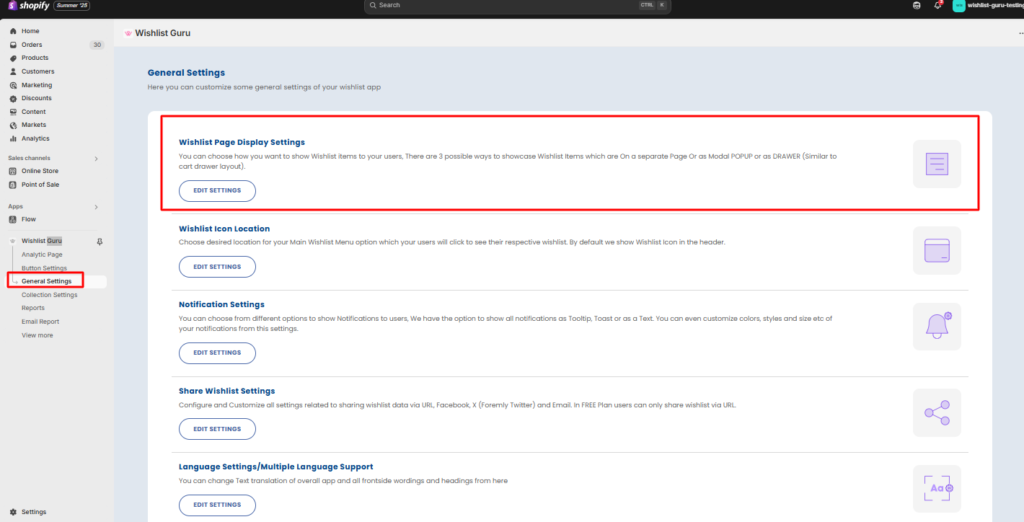
- In your Wishlist Guru admin dashboard, go to:
General Settings → Wishlist Page Display Settings. - Scroll to Styles for the Wishlist UI.
- Enable the option “Show Download CSV link.”

Steps to Customize the Link Text #
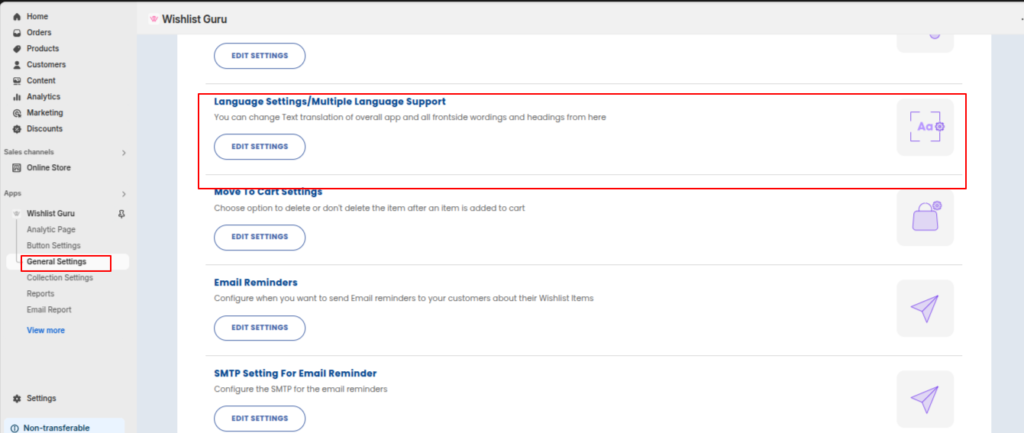
- Go to General Settings → Language Settings → Edit Translation.
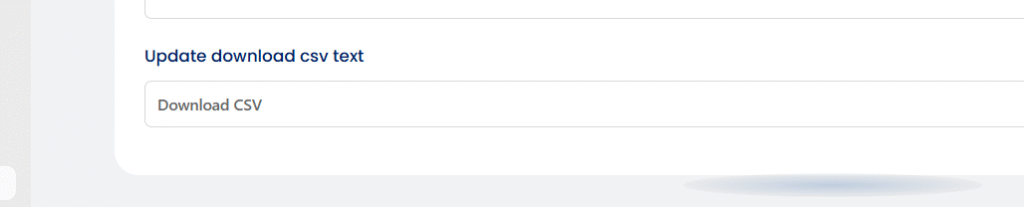
- Under Wishlist Modal Page Heading, find the text field for the Download CSV link.
- Enter your preferred wording (e.g., “Export Wishlist”, “Save as CSV”).
- Click Save.
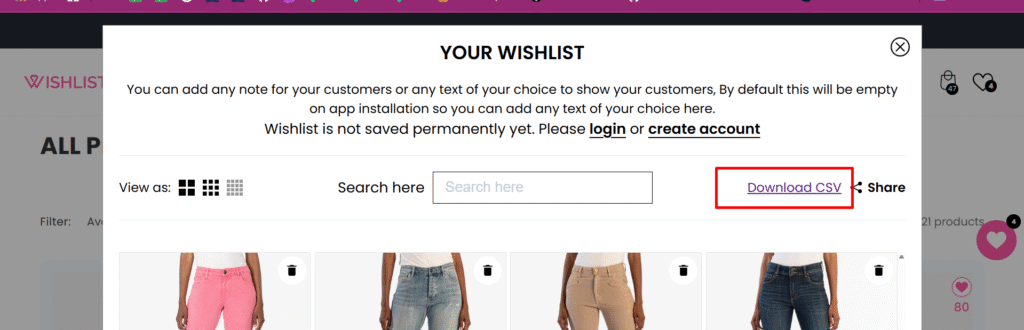
Once enabled, your customers will see a Download CSV link inside the wishlist modal, allowing them to instantly export their wishlist.
How can I add a custom “Download PDF” button in the modal? #
We’ve enhanced the Download CSV feature to support two scenarios — direct download and custom event handling. Using the new WgWishlistCsvDownload event, you can capture the wishlist data and use it to generate your own output, such as a PDF download.
How It Works #
- Direct Download (Default)
- By default, when customers click the Download button, the
.csvfile is downloaded automatically.
- By default, when customers click the Download button, the
- Custom Event Handling (For PDF or Other Formats)
- If you use the
WgWishlistCsvDownloadevent, the automatic CSV download is stopped. - Instead, you receive the wishlist data directly.
- You can then use this data to build and download a PDF (or any custom format you prefer).
- If you use the
Example Code #
Here’s a sample of how you can intercept the event in your theme code:
// Listen for the custom CSV download event
window.addEventListener("WgWishlistCsvDownload", function(event) {
    console.log("Received wishlist data:", event.detail.data);

    // Prevent the default CSV download
    event.preventDefault();

    // Example: You can now process the data and generate a PDF
    // Use a PDF library like jsPDF or pdfmake to create the file
    console.log("Use this data to build and download a PDF file instead.");
});
Next Steps #
- Add your own PDF generation logic using libraries like jsPDF or pdfmake.
- Replace the
console.logwith your custom code to create and trigger a Download PDF button inside the modal. - This allows full flexibility: rename buttons, adjust layouts, or add your own styling.
We can also do this customization for you on our end if you do not have any coding background just reach us out at support@webframez.com


