The Email Reminder feature in Wishlist Guru allows you to send personalized email notifications to customers about their wishlisted items. You can configure these reminders for events like when an item is back in stock, when an item is low in stock, or when there is a price drop.
How to Configure Email Reminders in Wishlist Guru: #
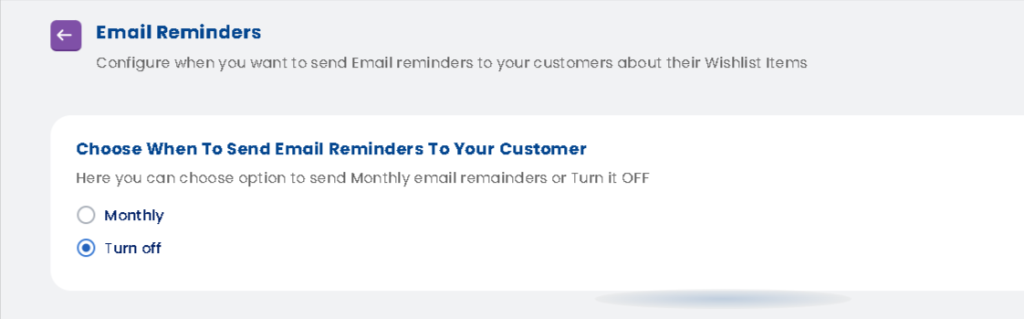
Configure when you want to send Email reminders to your customers about their Wishlist Items.
- Go to the General settings
- navigate to Email Settings / Email Reminders.
- Send Email Notifications
- Turn on the Monthly to activate automated wishlist emails.
- Monthly reminder emails – This will be sent once a month to all your registered users notifying them about their abandon wishlist items, this will a good opportunity to get in touch with them and remind them and encourage them to purchase those products
- Or you can make it Turn off if you don’t want to send.
How Do I Set Default Email Subscription (Opt-In or Opt-Out)? #
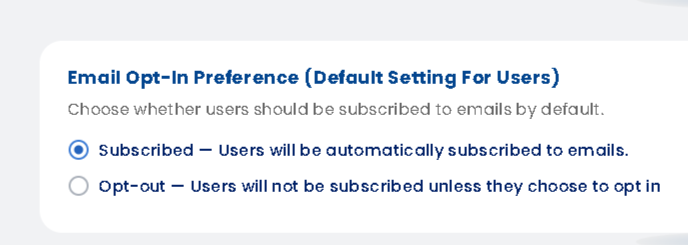
Control how customers are subscribed to email reminders by default.
How it works:
- Subscribed — Users are automatically enrolled in email notifications when they use the wishlist
- Opt-out — Users are not subscribed unless they manually choose to receive emails
Recommendation:
- Use Subscribed to maximize engagement and ensure more customers receive reminders
- Use Opt-out if you want to give users full control over email subscriptions (useful for privacy-focused regions)
How Do I Enable Back in Stock Email Alerts? #
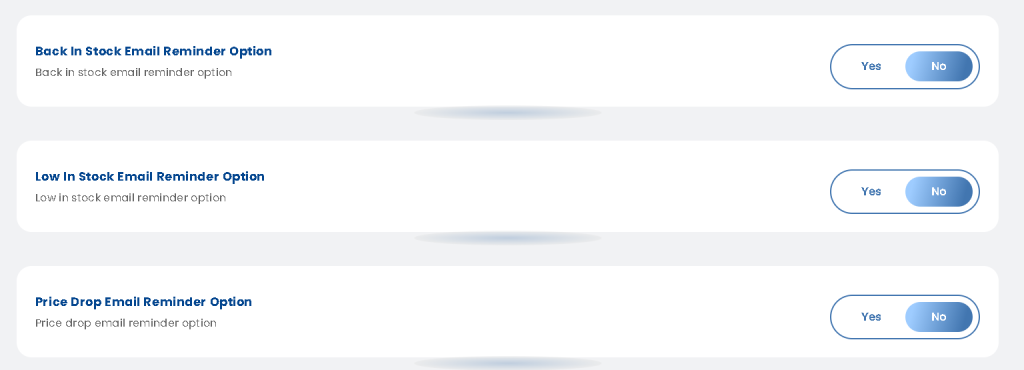
If any product from your customer wishlist gets out of stock, Then they will get notified via email as soon as any such product is back in stock
How it works:
- Turn the toggle to “Yes” to enable back-in-stock emails
- Customers will automatically receive a notification when the product becomes available again
- Keep it “No” if you don’t want to send these alerts
How Do I Notify Customers About Price Drops? #
Our app will send email to registered customers notifying them whenever there is any price drop in any product from their wishlist items
How it works:
- Turn the toggle to “Yes” to send price drop notifications
- Customers will be alerted automatically when the price is reduced
- This helps improve conversions by targeting price-sensitive shoppers
How Do I Send Low Stock Email Notifications to Customers? #
Our app will send email alert if any product inventory gets low – less than 5
How it works:
- Select “Yes” to activate low stock alerts
- Customers will receive emails when inventory reaches a low level
- Helps encourage faster purchase decisions
How Do I Upload My Store Logo for Emails? #
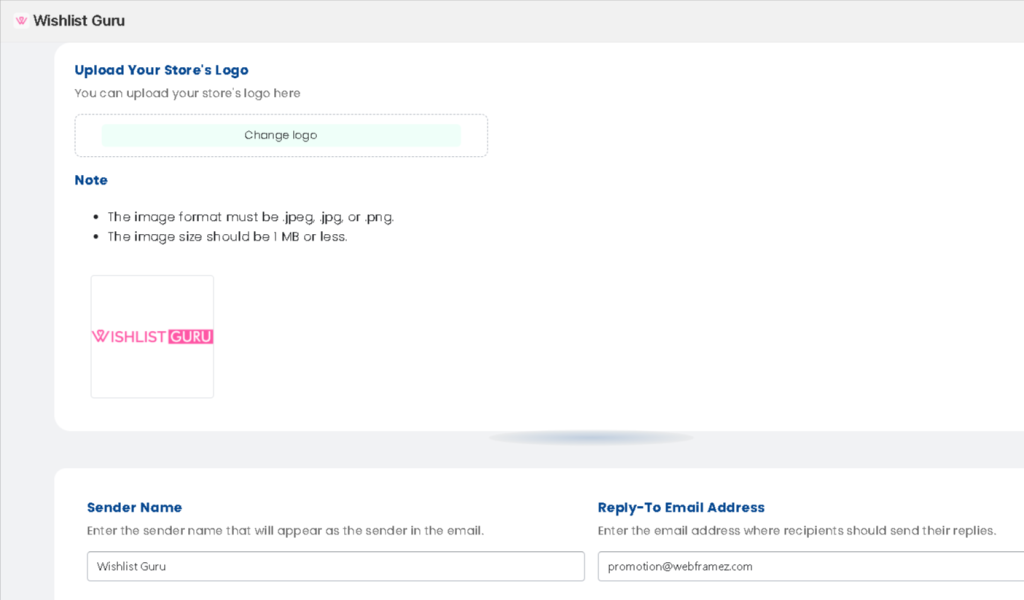
Add your brand logo to personalize your email reminders and maintain brand consistency.
How it works:
- Click on “Change Logo” to upload your store logo
- The logo will appear in all email notifications sent to customers
Note:
- Supported formats: .jpeg, .jpg, .png
How Do I Set the Sender Name for Emails? #
Set the name that customers will see as the sender of the email.
How it works:
- Enter your brand or store name
- This helps customers easily recognize your emails in their inbox
How Do I Set the Reply-To Email Address? #
Define where customer replies should be sent.
How it works:
- Enter a valid email address where you want to receive replies
- Customers can respond directly to your emails using this address
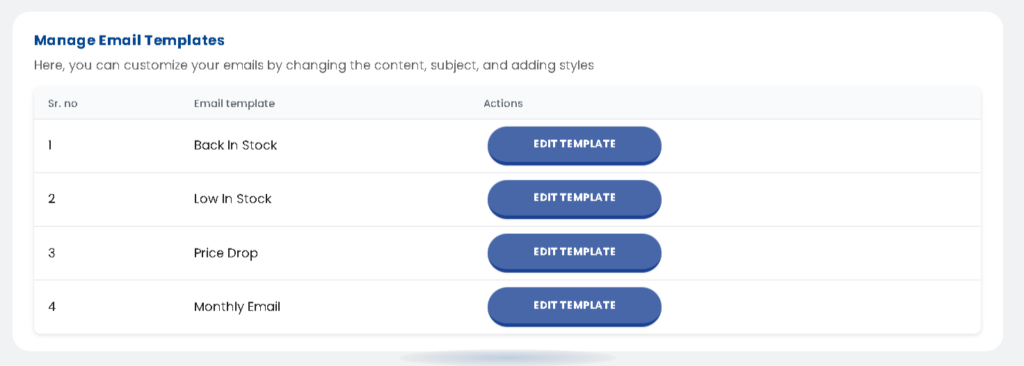
How Do I Manage and Customize Email Templates? #
You can customize your email notifications by editing the content, subject line, and styling of each template.
How it works:
- Go to Manage Email Templates in the app
- Select the email template you want to edit
- Update the subject, content, and design as per your brand
- Preview the email and save changes
Available Email Templates #
You can customize the following templates:
- Monthly Email – Send periodic reminders about saved wishlist items
- Price Drop – Notify customers when product prices decrease
- Low In Stock – Create urgency when stock is limited
- Back In Stock – Inform customers when items are available again
For example, let’s take the Back in Stock reminder as an example:
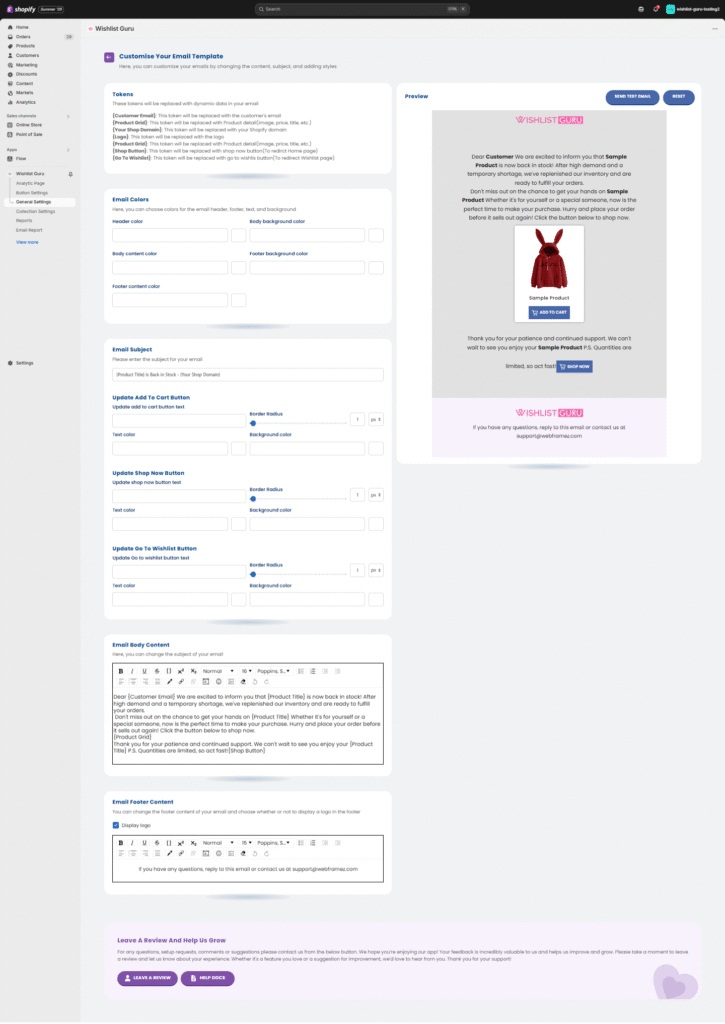
- Edit the Email Subject: You can choose the subject line that you want to appear in the email when it’s sent to your customers.
- Email Body Content: Customize the content of the email body. You can modify the text, insert images, or adjust the layout. Any changes you make in this section will be reflected in the email that will eventually be sent to customers.
- Edit Footer Content: You can also edit the footer content of the email, such as adding your contact details, social media links, or any other information you’d like to include.
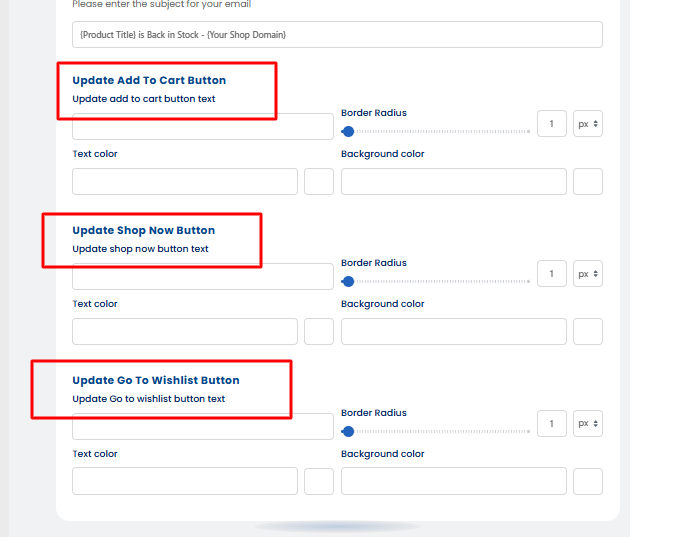
- You can edit and style all three buttons — Add to Cart, Shop Now, and Go to Wishlist — in the email template. To do this, go to General Settings > Email Reminder > Edit Template.
By following these steps, you can easily configure and personalize email reminders for your customers based on their wishlist activity. This helps keep them engaged and informed about their desired products, leading to better customer retention and increased sales.
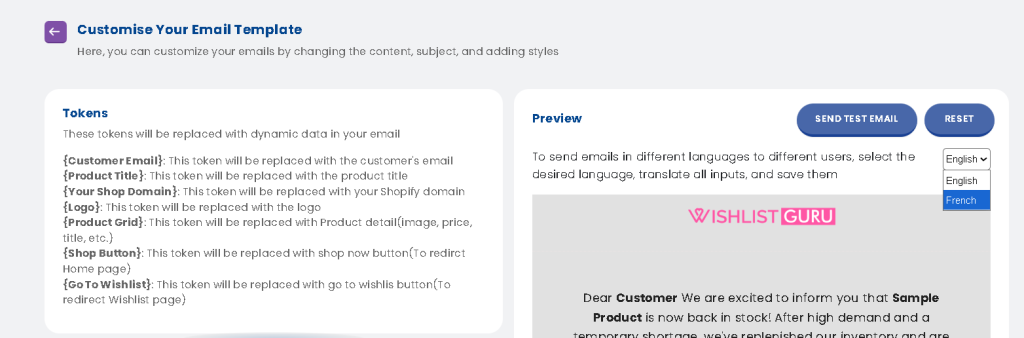
How to Send Wishlist Emails in Multiple Languages #
- To send emails in different languages to different users
- Select the desired language from dropdawn
- translate all Text and customize the style
- and Save them.