
Customize your storefront experience by editing text and language translations in Wishlist Guru. You can easily update button labels, wishlist messages, and notifications to match your store branding and preferred language.
This feature is especially useful for multilingual stores or merchants who want to deliver a more personalized and localized shopping experience.
Steps to Edit Storefront Text and Language in Wishlist Guru #
- Go to the Dashboard page or General Settings (check screenshot)
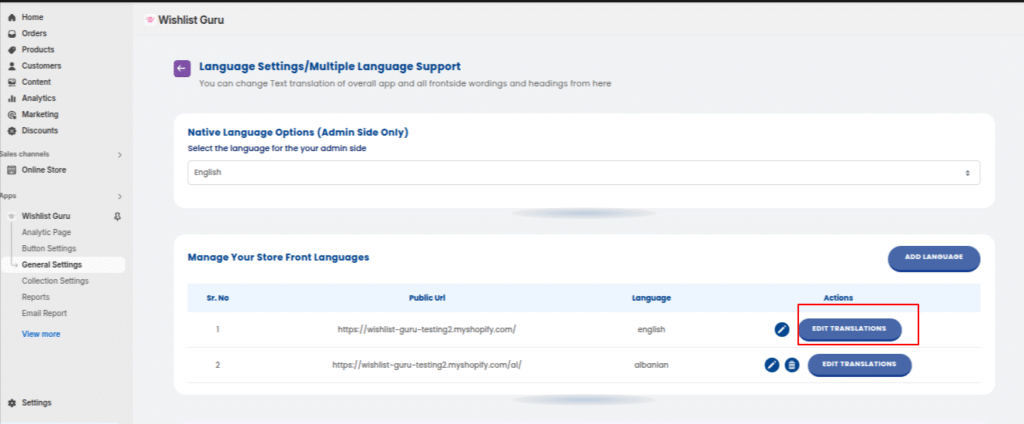
- Navigate to Language Settings/Multiple Language Support
- Click on Edit Settings

4. Click Edit Translation button shown in Manage your store front languages, update the text on the language settings page
5. Locate the text field you want to change (button, message, label, etc.)
6. Update the text as per your requirement
7. Click Save to apply changes
Note: Slovenian, Croatian, Hebrew, and Ukrainian are currently supported for the storefront side only and are not available for the admin dashboard.
If you want to change the translation for different languages, then you will need to repeat the same process for all languages one by one.
When Should You Use These Settings? #
Use these settings if you want to:
- Translate wishlist content for international customers
- Customize button text and messages to match your brand
What You Can Customize in Translation Settings #
The translation settings give you full control over the text displayed across your wishlist feature. You can customize various elements to match your store’s branding and provide a consistent user experience.
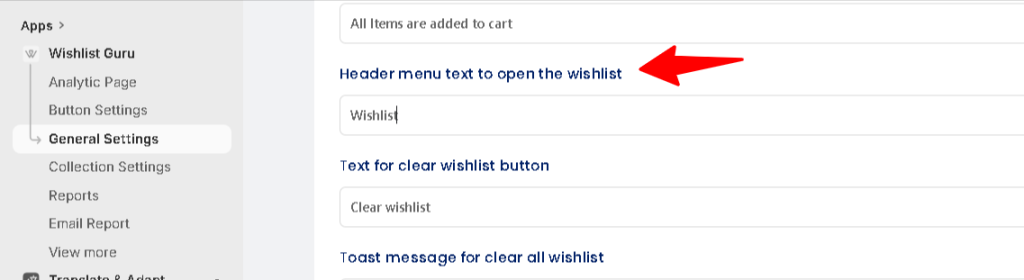
Edit Header Wishlist menu Text #
Use this field to edit the menu text
Edit Wishlist Button and Notification Text #
Use this section to edit all button labels and notification messages related to the wishlist feature.
You can customize:
- Wishlist button text
- Confirmation messages
- Alert and success notifications

Edit Translations for wishlist Modal/Page/Drawer #
Use this section to edit all text shown within the wishlist modal, page, and drawer.
You can customize:
- Headings and titles
- Button labels (e.g., Add to Wishlist, Remove)
- Notifications and alert messages
These settings help you create a seamless and branded wishlist experience for your customers.
Edit Translations for the Share Wishlist via URL Modal #
Use this section to update the content shown in the Share Wishlist via URL popup.

Edit Translations for the Shared Wishlist page (Viewed by your users friends) #
This section allows you to customize the text displayed on the shared wishlist page when customers share their wishlist with friends.

Edit Translations for Share the wishlist via email #
These language settings empower you to customise your Share Wishlist via the Email feature. When you upgrade to the premium plan, the modal appears as shown below:

Edit Translations for Multiple Wishlists #
The admin can even change the translations for the Multiple Wishlist (available in Premium Plan). Please check the screenshot :

Edit Translations for Trending widget section #
Feel free to edit the translations for the section heading of the trending widget section too.

Can’t find your language?
If your preferred language is not available in the app, feel free to reach out to our support team. We’ll be happy to add it for you.


